
 -by
-by Is your Android phone feeling slow, laggy, or unresponsive? Over time, even the best phones can lose speed due to old files, apps running in the background, and software updates. The good news is—you don’t need to buy a new phone. With a few simple tips and tricks, you can make your old Android phone faster, smoother, and more enjoyable to use.
Here’s how to do it:
01. Clear Cache and Junk Files
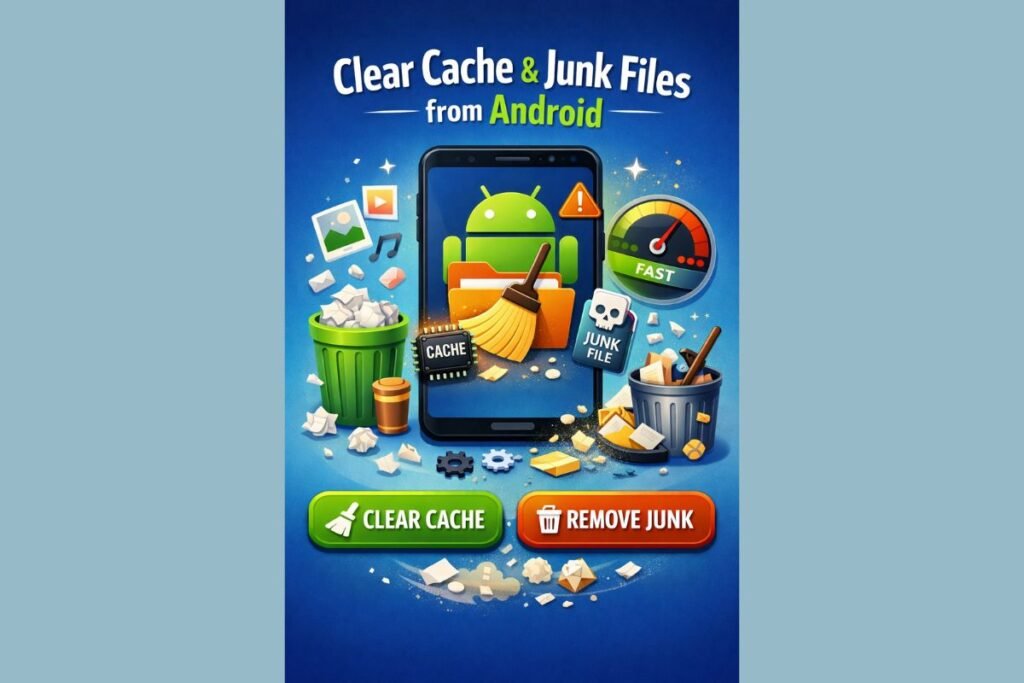
Old files, temporary data, and cached files can slow down your phone. Regularly cleaning them frees up storage and improves performance.
- Go to Settings > Storage and clear Cached Data.
- Use apps like Files by Google to remove junk files, duplicate photos, and unnecessary downloads safely.
Tip: Clearing cache won’t delete your personal data but can instantly free up space and speed up your device.
02. Uninstall Apps You Don’t Use
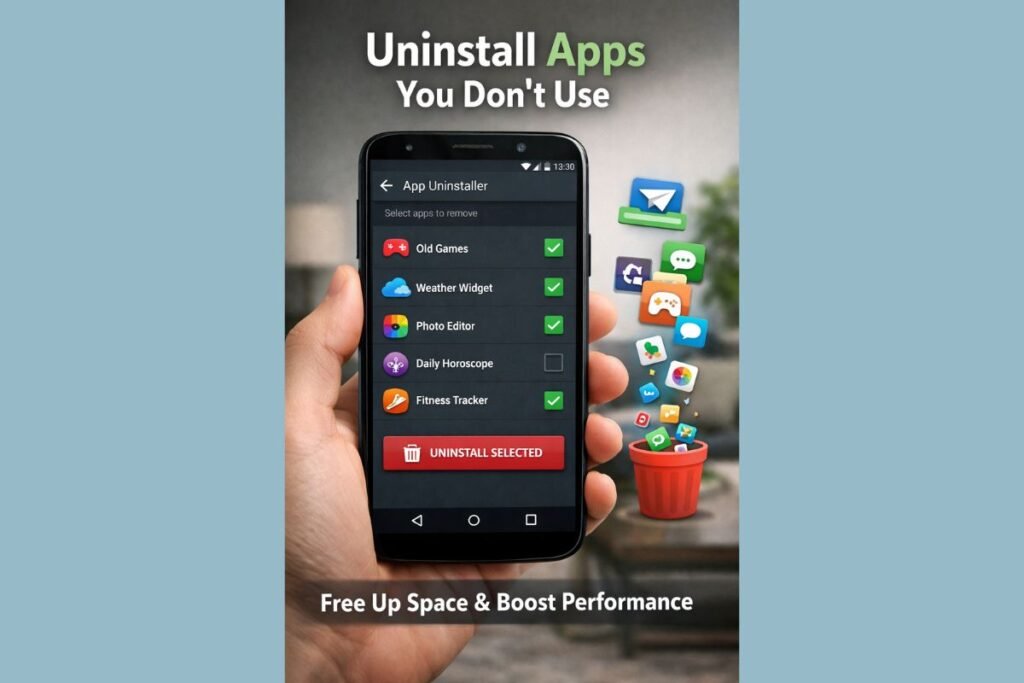
Many apps run in the background even if you don’t open them, consuming memory and battery.
- Go to Settings > Apps and review your installed apps. Remove anything you rarely use.
- Disable pre-installed apps (bloatware) that you don’t need, as they often slow down your device.
Tip: You can also check which apps are using the most battery or memory in Settings > Battery or Settings > Memory.
03. Keep Your Phone and Apps Updated
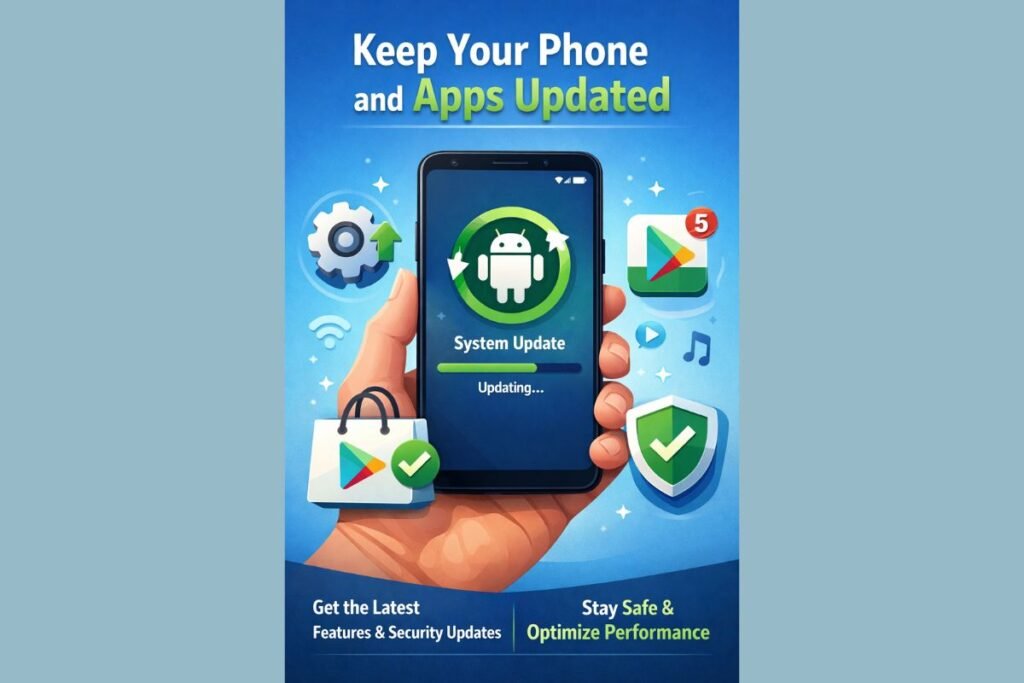
Software updates not only bring new features but also fix bugs and improve speed.
- Go to Settings > System > Software Update to ensure your phone is running the latest version.
- Open the Google Play Store and update all apps regularly.
Tip: Outdated apps can slow your phone, cause crashes, or drain your battery faster.
04. Reduce Animations
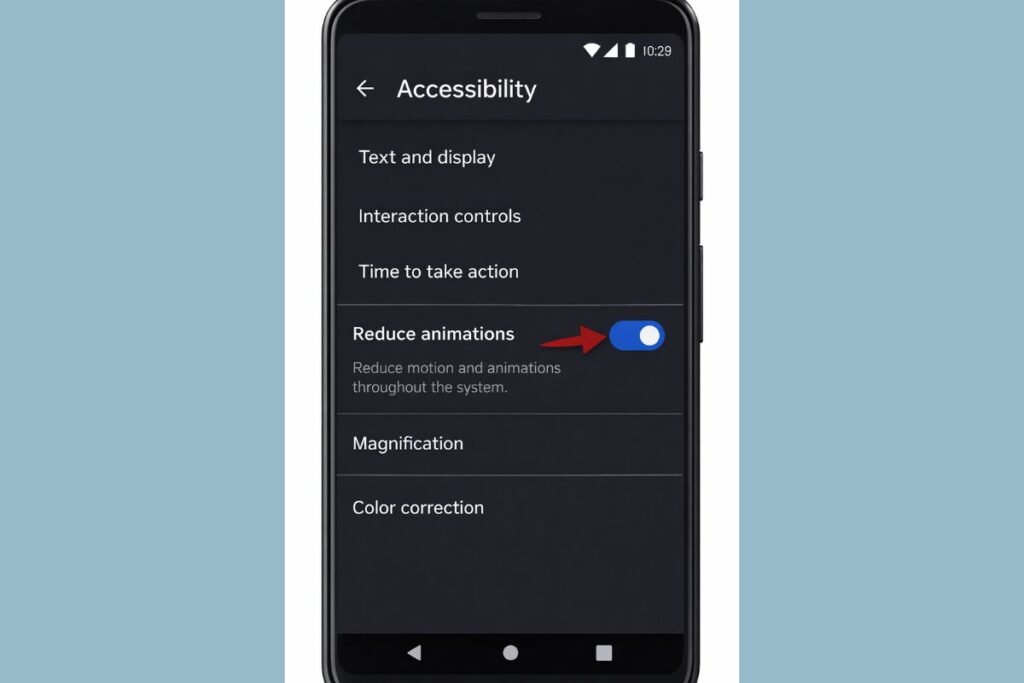
Android animations make transitions smooth, but on older phones, they can slow down performance.
- Enable Developer Options by tapping Build Number 7 times in Settings > About Phone.
- In Developer Options, set Window Animation Scale, Transition Animation Scale, and Animator Duration Scale to 0.5x or off.
Tip: This simple change can make your phone feel noticeably faster without affecting functionality.
05. Try a Lightweight Launcher
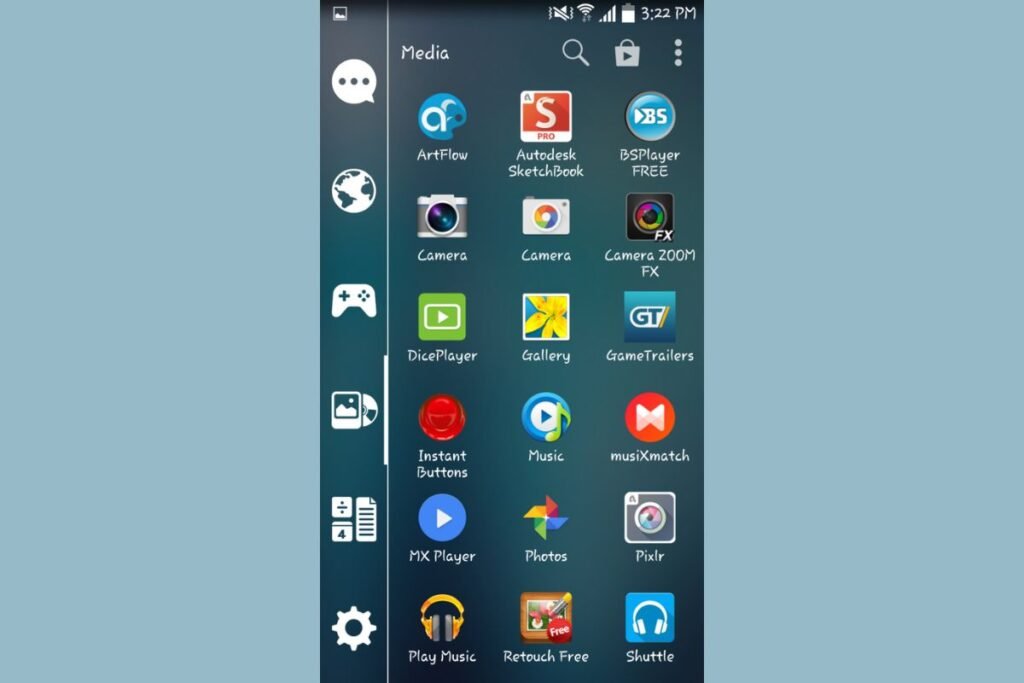
Some default Android launchers are heavy and slow down older phones. A lightweight launcher can make your phone feel faster and more responsive.
- Recommended launchers: Nova Launcher, Microsoft Launcher, or Lawnchair.
Tip: Lightweight launchers also let you customize your home screen for better usability.
06. Limit Background Apps
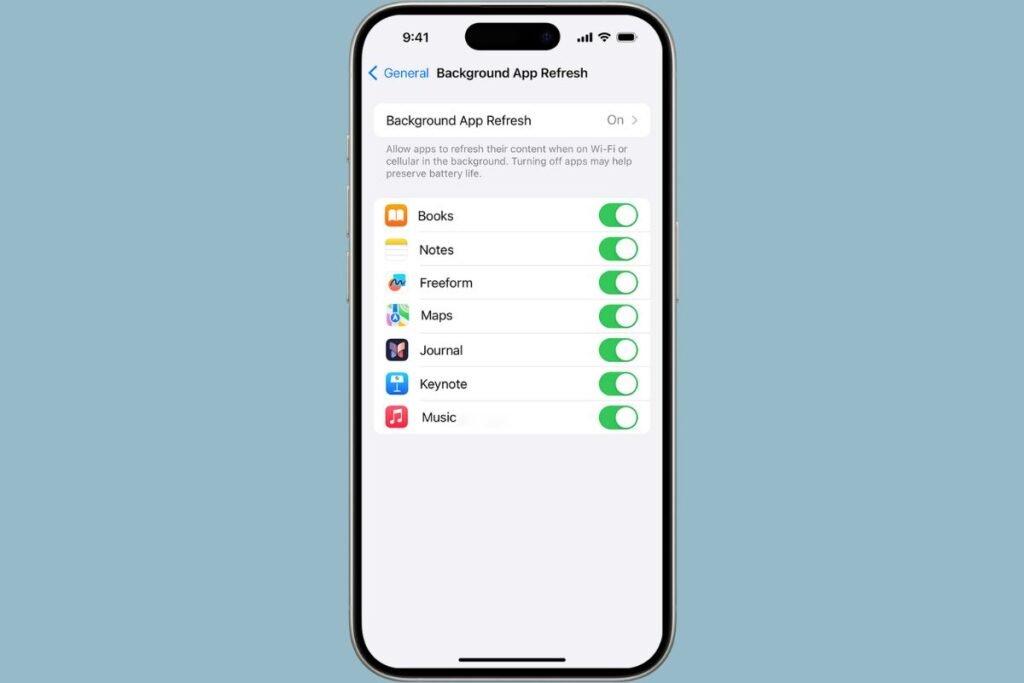
Apps running in the background use memory, battery, and mobile data, slowing down your phone.
- Go to Settings > Battery > Background Restrictions to limit unnecessary apps.
- Turn on Data Saver to prevent apps from using data in the background.
Tip: Only allow essential apps like messaging or email to run in the background.
07. Free Up Storage
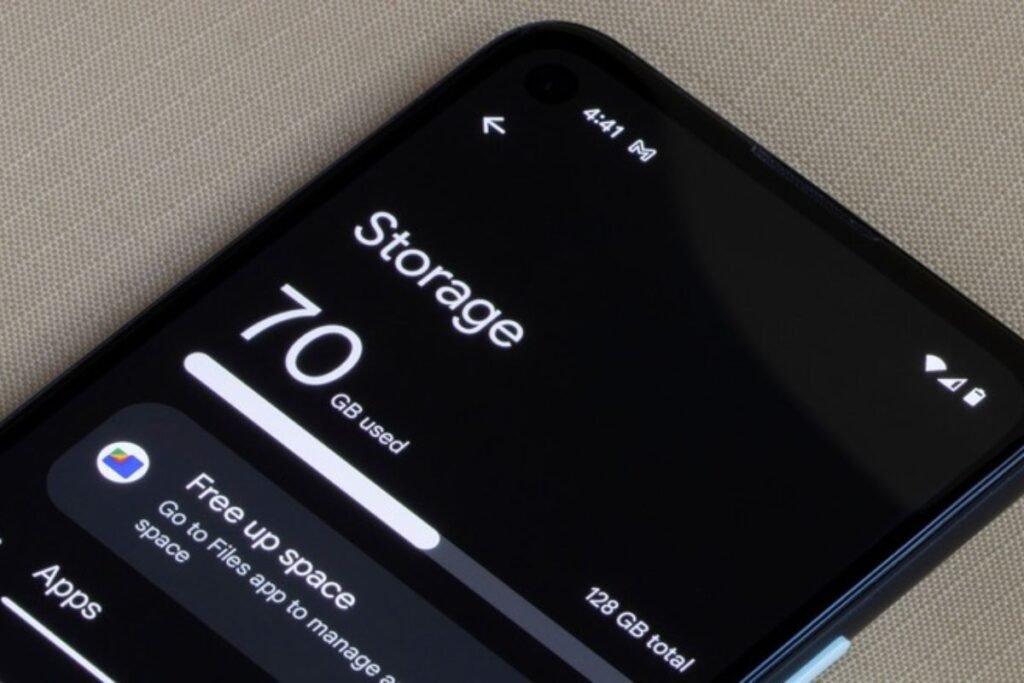
Phones slow down when storage is nearly full. Freeing up space improves speed and prevents crashes.
- Move photos, videos, and documents to Google Photos, Google Drive, or an SD card.
- Delete old downloads, duplicate files, and apps you no longer use.
Tip: Keep at least 10–15% of your phone’s storage free for optimal performance.
08. Use Lite Apps
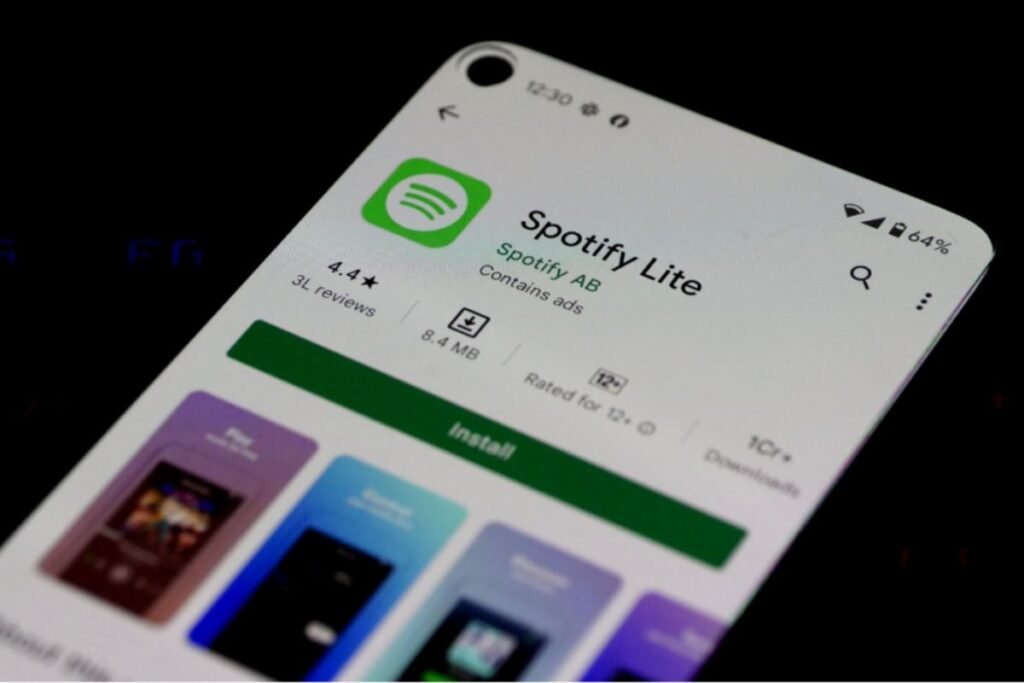
Lite apps are smaller, use less memory, and are designed for older devices.
- Examples: Facebook Lite, Messenger Lite, YouTube Go, Twitter Lite.
Tip: Lite apps often load faster, use less battery, and work well on slower internet connections.
09. Keep Your Phone Cool
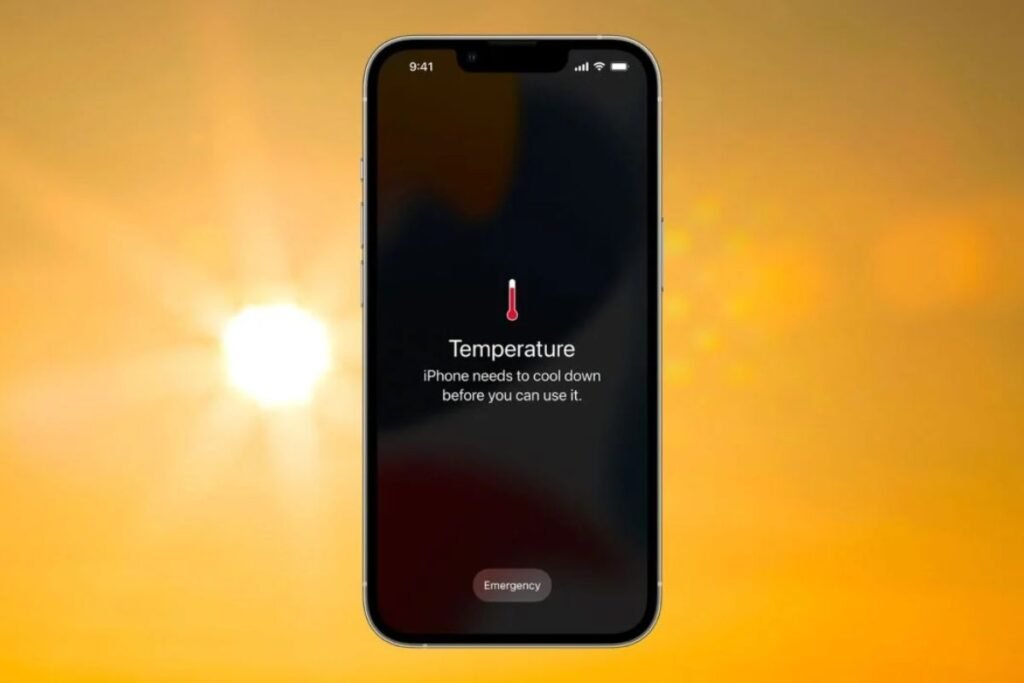
Overheating can slow your phone and reduce battery life.
- Don’t leave your phone in direct sunlight, hot cars, or near heaters.
- Avoid running heavy apps while charging, like games or video streaming.
Tip: A phone that stays cool runs smoother and lasts longer.
10. Factory Reset as a Last Resort
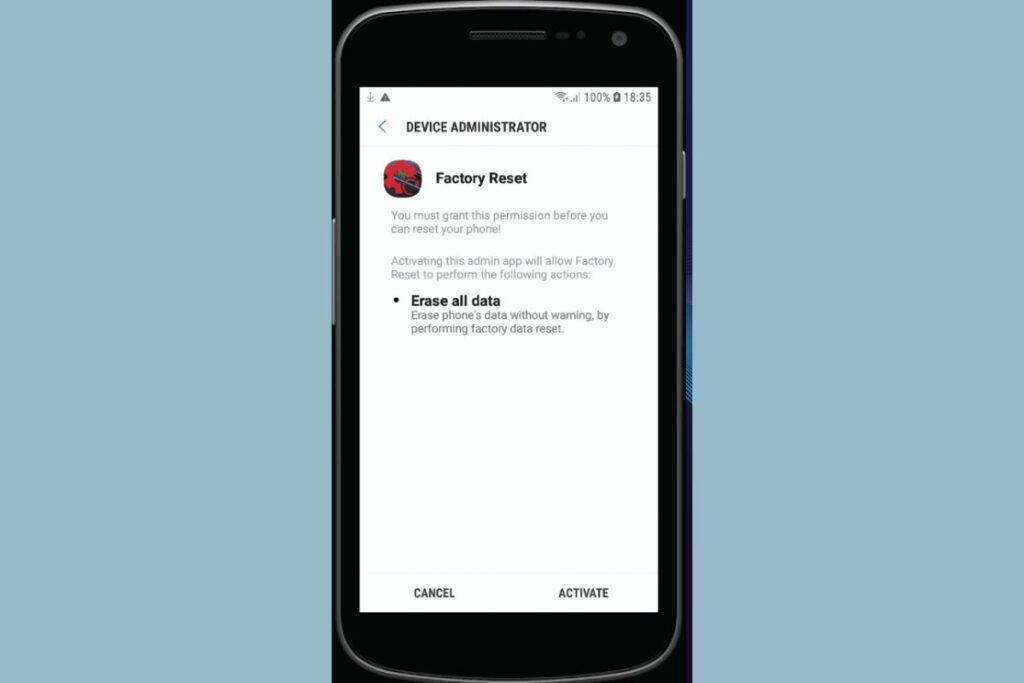
If your phone is still slow after trying everything, a factory reset can restore it to like-new performance.
- Backup your photos, contacts, and files first.
- Go to Settings > System > Reset > Factory Data Reset.
Tip: A factory reset removes all apps and data, so it’s best to try all other tips first.
Final Thoughts
Even an older Android phone can feel brand new with a little maintenance. By clearing junk files, uninstalling unused apps, limiting background activity, and keeping your phone updated, you can speed up your device easily. Add lightweight apps, free up storage, and keep your phone cool to make it run smoother, faster, and last longer.
Extra Tip: Regular maintenance every few months helps keep your Android phone performing well without any major issues.
Related Keywords:
why is my phone so slow, why my phone is slow, phone getting slow, why is my phone running so slow, how to speed up my phone, how can i speed up my phone, how to speed up your phone, how to make android faster, how to make an android faster, how to speed up an android phone, how to make a android phone faster
1 Comment