 -by
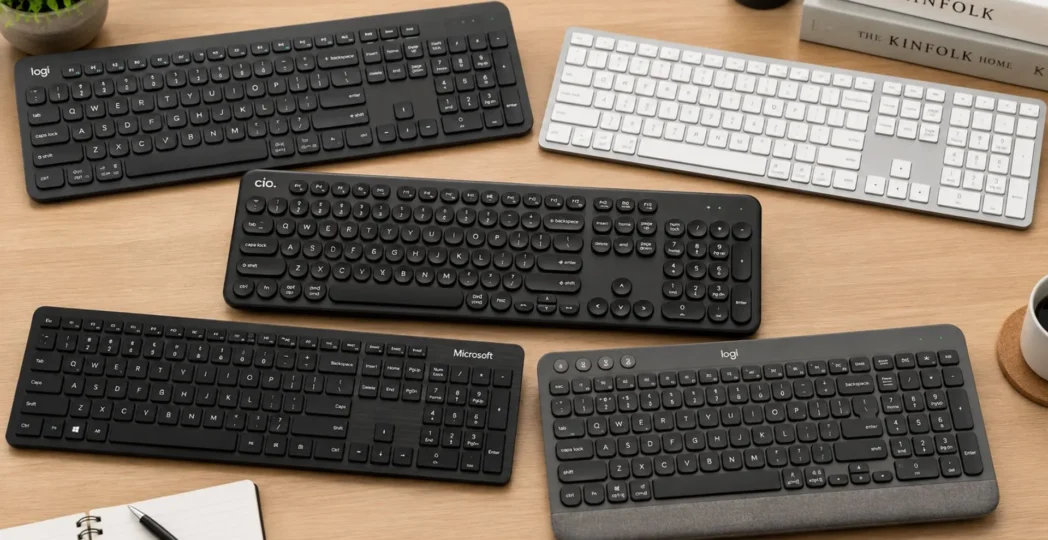
-by A wireless keyboard can make a desk cleaner, improve comfort, and give you more flexibility when working, studying, gaming, or using multiple devices. However, choosing the best wireless keyboard in 2026 is not as simple as picking the most expensive model or the one with the highest review score. The right choice depends on how you work and what you expect from your keyboard.
A programmer may prioritize switch feel, layout, and multi-device connectivity. An office worker may want quiet keys and a comfortable typing angle. A traveler may care most about size and battery life, while a gamer may focus on wireless latency and responsiveness. This guide explains how wireless keyboards work, which features matter, and how to compare the major types available today.
It also highlights practical buying advice, common mistakes, compatibility concerns, and real-world situations where one type of keyboard makes more sense than another. Whether you are buying your first wireless keyboard, upgrading a crowded workspace, or searching for a professional model for daily use, this guide will help you make a more informed decision.
What Is the Best Wireless Keyboard?
The best wireless keyboard is the one that matches your devices, typing style, workspace, and budget. For most people, a reliable model with a comfortable layout, stable Bluetooth or 2.4 GHz connectivity, good battery life, and support for their preferred operating system offers the best balance. There is no single keyboard that is perfect for everyone.
For example:
- Office users may prefer a quiet, full-size or compact keyboard.
- Professionals using multiple devices may benefit from multi-device Bluetooth switching.
- Gamers may prefer a low-latency 2.4 GHz connection.
- Travelers may want a lightweight, compact design.
- Mechanical keyboard enthusiasts may prioritize switches, keycaps, and customization.
- Mac or Windows users should check layout and shortcut compatibility before buying.
The best buying strategy is to decide how you will use the keyboard before comparing brands or premium features.
How We Evaluate a Wireless Keyboard
A useful keyboard recommendation should not depend only on brand popularity or appearance. A keyboard can receive excellent reviews and still be the wrong choice for a particular user.
When comparing wireless keyboards, these factors matter most:
- Typing comfort
- Wireless connection quality
- Battery performance
- Compatibility
- Build quality
- Keyboard layout and size
- Noise level
- Multi-device support
- Latency and responsiveness
- Value for money
These criteria also help explain why two users can have completely different opinions about the same product. Someone who types eight hours a day may value key feel more than RGB lighting. A gamer may accept a heavier keyboard in exchange for a faster wireless connection. A student may prefer portability over a dedicated number pad. Understanding these trade-offs is more useful than searching for one universal winner.
What Is a Wireless Keyboard and How Does It Function?
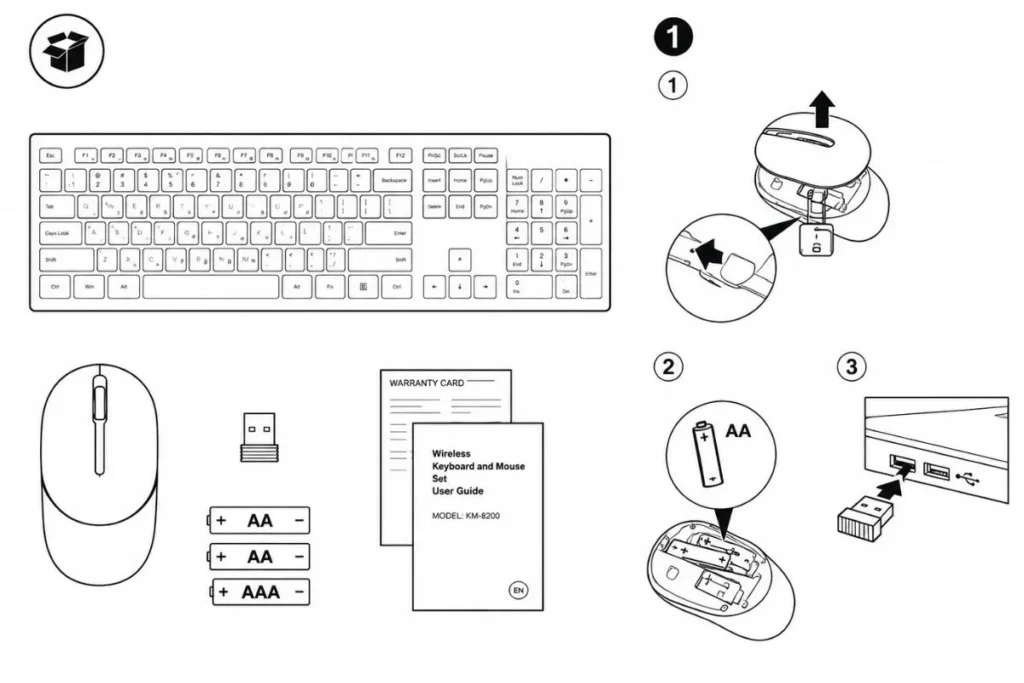
A wireless keyboard is a keyboard that communicates with a computer, tablet, phone, or other compatible device without a permanent wired data connection. Most models use one of two primary wireless technologies:
- Bluetooth
- A dedicated 2.4 GHz wireless receiver
Some keyboards support both.
Bluetooth Wireless Keyboards
Bluetooth keyboards connect directly to compatible devices without requiring a dedicated USB receiver in many cases. They are especially useful for:
- Laptops
- Tablets
- Smartphones
- Modern desktop computers
- Multi-device setups
A Bluetooth keyboard may allow you to pair with several devices and switch between them using dedicated buttons or key combinations.
Advantages
- No USB port may be required.
- Convenient for tablets and phones.
- Often supports multiple paired devices.
- Useful for minimalist workspaces.
Limitations
- Pairing and switching behavior can vary by device.
- Wireless responsiveness depends on the keyboard, device, and Bluetooth implementation.
- Some computers may have poor Bluetooth performance if their wireless hardware or drivers are outdated.
2.4 GHz Wireless Keyboards
These keyboards usually connect through a small USB receiver. The receiver creates a dedicated connection between the keyboard and the computer. This option is common for desktop computers and gaming keyboards.
Advantages
- Usually simple to set up.
- Often offers highly responsive performance.
- Can provide a stable connection for demanding tasks.
Limitations
- Uses a USB port unless an adapter or hub is available.
- The small receiver can be lost.
- Not every tablet or phone supports a USB receiver conveniently.
Dual-Mode and Multi-Mode Keyboards
Many modern wireless keyboards offer more than one connection method.
For example, a keyboard may support:
- Bluetooth for a tablet
- Bluetooth for a phone
- 2.4 GHz wireless for a desktop PC
This setup can be particularly useful for people who work across several devices. A multi-device keyboard can reduce the need to own separate keyboards for every computer.
The Key Features For Choosing a Wireless Keyboard
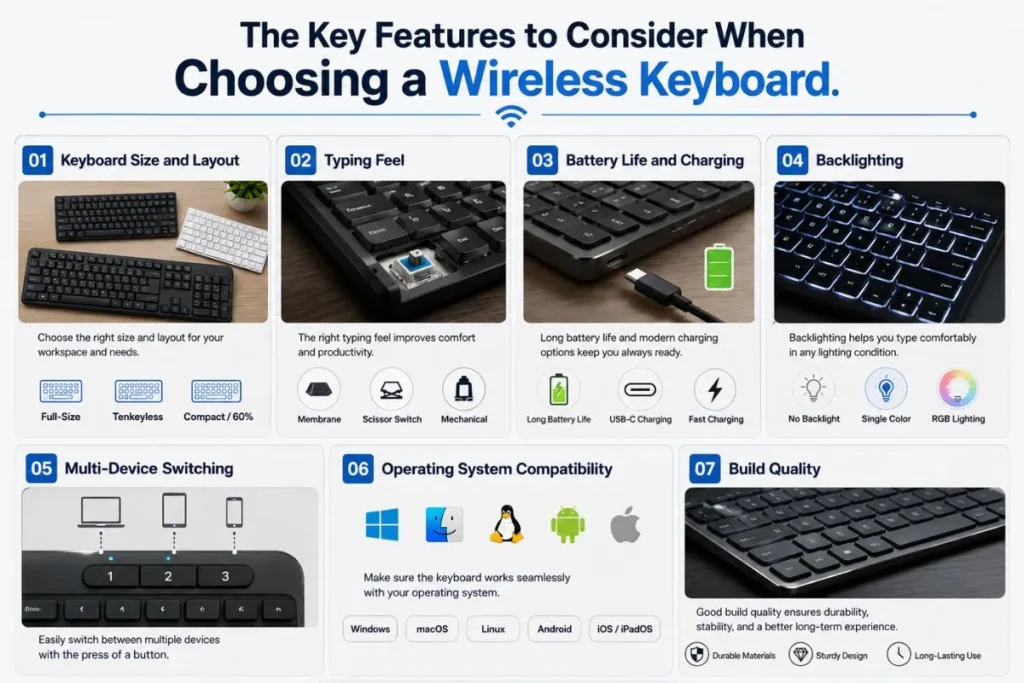
01. Keyboard Size and Layout
One of the first choices you need to make is selecting the right size. A smaller keyboard can save desk space, but it may remove keys you use regularly.
Full-Size Keyboard
A full-size layout typically includes:
- Letter and number keys
- Function row
- Navigation cluster
- Arrow keys
- Numeric keypad
It is a practical option for:
- Data entry
- Accounting
- Spreadsheet work
- Users who frequently enter numbers
The main drawback is its larger footprint.
Tenkeyless or TKL Keyboard
A tenkeyless keyboard removes the numeric keypad while keeping the main typing area, function row, navigation keys, and arrows. It can be a good compromise between functionality and desk space.
Compact Keyboards
Compact layouts may include 75%, 65%, or smaller designs.
These keyboards are useful when:
- Desk space is limited.
- You travel frequently.
- You prefer a centered mouse position.
- You want a cleaner setup.
However, smaller layouts often require function layers for some commands. Before buying, check whether frequently used keys such as Home, End, Delete, Page Up, or Page Down are directly accessible. That small detail can make a major difference in daily use.
02. Typing Feel
Typing feel is highly personal.
Two major categories dominate the market:
- Membrane keyboards
- Mechanical keyboards
Membrane Keyboards
Membrane keyboards generally use a flexible layer beneath the keys.
They are often:
- Quiet
- Lightweight
- Affordable
They can work well for everyday office tasks and general computing.
Mechanical Keyboards
Mechanical keyboards use individual switches beneath the keys. Depending on the switch type, they can offer different characteristics.
For example:
- Linear switches generally provide smooth movement.
- Tactile switches provide noticeable feedback during a keypress.
- Clicky switches deliver tactile feedback along with a noticeable clicking sound.
Mechanical keyboards can appeal to writers, programmers, and enthusiasts, but they are not automatically better for everyone. Some mechanical keyboards are loud, heavy, or expensive. Quiet membrane or scissor-switch keyboards may be a better choice for shared offices.
03. Battery Life and Charging
Battery design is easy to overlook until the keyboard stops working in the middle of an important task.
Wireless keyboards commonly use:
- Replaceable batteries
- Built-in rechargeable batteries
Replaceable Batteries
These can be convenient because you can quickly install new batteries. However, long-term cost and waste may matter to some users.
Rechargeable Batteries
Rechargeable keyboards can be convenient if charging fits your routine.
Before buying, check:
- Charging port type
- Whether the keyboard works while charging
- How battery life changes with backlighting
- Whether the battery is replaceable or sealed
Battery estimates should also be interpreted carefully. Manufacturers may calculate battery life under specific conditions. Turning on backlighting, RGB effects, or other features can reduce runtime.
04. Backlighting
Backlighting helps when typing in dim environments.
Common options include:
- White backlighting
- Adjustable brightness
- RGB lighting
For many office users, simple adjustable backlighting is more useful than complex lighting effects. For gaming and customized setups, RGB lighting may be more appealing. Remember that lighting can affect battery life. If long battery performance is your priority, a keyboard with no backlight or adjustable lighting may be more practical.
05. Multi-Device Switching
This feature is especially valuable for modern work setups.
Imagine using:
- A Windows desktop for work
- A laptop for meetings
- A tablet for reading or notes
Instead of disconnecting and pairing the keyboard repeatedly, a multi-device model may allow quick switching.
Before buying, check:
- The number of devices supported
- Whether switching is instant or requires re-pairing
- Which connection types are available
- Whether the same keyboard layout works well across your operating systems
06. Operating System Compatibility
A keyboard may technically connect to your device while still feeling awkward to use.
Check compatibility with:
- Windows
- macOS
- ChromeOS
- Android
- iPadOS
- Linux, where relevant
The main issue is often layout and shortcut labeling. For example, modifier keys may use different names or positions depending on the platform. If you regularly switch between Windows and macOS, look for a keyboard that supports both layouts clearly.
07. Build Quality
A keyboard used every day experiences thousands of key presses over time.
Useful build considerations include:
- Flex in the keyboard frame
- Keycap quality
- Stability of larger keys
- Adjustable feet
- Weight
- Portability
- Resistance to fingerprints and wear
A heavy keyboard may feel stable on a desk but be inconvenient for travel. A lightweight keyboard may be portable but can move while typing if its feet and grip are poor. The best choice depends on where and how you use it.
Best Wireless Keyboard Types for Different Users
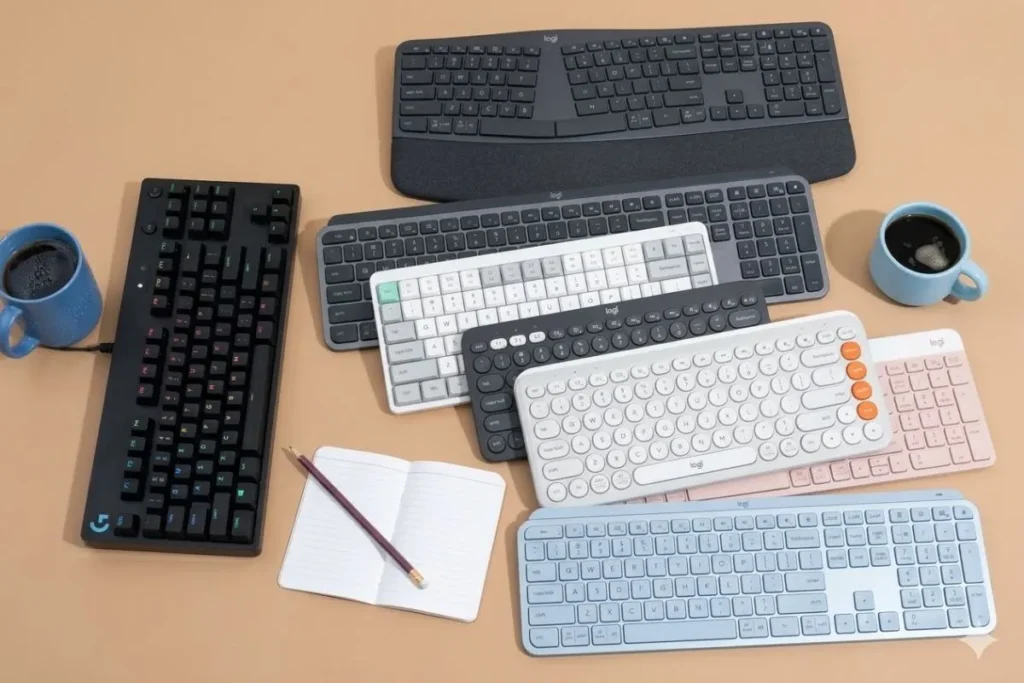
Rather than recommending one model for everyone, it is more useful to match keyboard categories to specific needs.
| User Type | Best Keyboard Characteristics | Features to Prioritize |
| General users | Comfortable and simple | Bluetooth, good battery life |
| Office workers | Quiet and ergonomic | Full-size or TKL, comfortable keys |
| Writers | Consistent typing feel | Layout, key stability, comfort |
| Programmers | Efficient layout | Multi-device support, programmable keys |
| Gamers | Fast and responsive | 2.4 GHz connection, low-latency performance |
| Travelers | Small and lightweight | Compact layout, portability |
| Spreadsheet users | Full layout | Numeric keypad |
| Multi-device users | Flexible connectivity | Bluetooth profiles and device switching |
Best for Office Work
For office work, comfort and reliability usually matter more than advanced lighting.
Look for:
- Quiet keys
- Comfortable spacing
- Stable wireless connectivity
- Reliable battery performance
- A layout suitable for your work
A full-size model makes sense if you frequently work with numbers. A TKL or compact keyboard may create more room for your mouse and documents.
Best for Gaming
A gaming keyboard should not be selected based only on whether it is mechanical.
Important factors include:
- Wireless responsiveness
- Connection stability
- Key rollover
- Switch preference
- Battery behavior with lighting enabled
- Software and onboard settings
A dedicated 2.4 GHz wireless connection may be preferable when responsiveness is a major priority. If competitive gaming is your main use, investigate independent latency testing where available instead of relying solely on marketing descriptions.
Best for Travel
Travel keyboards should balance portability and usability.
Look for:
- Low weight
- Durable construction
- Compact size
- Good Bluetooth support
- Protective storage options
Avoid going too small if you type long documents. A highly compact layout may look convenient but slow down your workflow if you constantly use function layers.
Best for Programmers and Professionals
Professional users often benefit from features that reduce friction rather than add visual effects.
Useful features may include:
- Multi-device switching
- Custom shortcuts
- Stable connection
- Comfortable key feel
- Mac and Windows compatibility
- Compact layouts with accessible navigation keys
For technology-related buying guides and workspace advice, Tech All World and Techh AtoZ can also be useful places to build internal links to related content on computer accessories, productivity tools, and desk technology.
Wireless Keyboard vs Wired Keyboard

Wireless keyboards are not automatically better than wired keyboards.
Each type has advantages.
| Feature | Wireless Keyboard | Wired Keyboard |
| Desk appearance | Cleaner | Cable visible |
| Portability | Often better | Limited by cable |
| Battery management | Required | Usually not required |
| Setup | Bluetooth or receiver | Plug-in cable |
| Device flexibility | Often excellent | Usually one direct connection |
| Gaming responsiveness | Depends on technology | Traditionally straightforward |
| Cable reliability | No cable wear during use | Cable can wear or snag |
When a Wireless Keyboard Is Better
Choose wireless when you value:
- A clean desk
- Flexible positioning
- Multiple devices
- Tablet or mobile use
- Portability
When a Wired Keyboard Is Better
Choose wired when you want:
- No battery management
- A permanent desk setup
- Simple plug-and-play operation
- The fewest possible wireless variables
The decision should reflect your workflow rather than current trends.
Mechanical vs Membrane vs Scissor-Switch Wireless Keyboards
Mechanical
Best for users who care strongly about typing feel and switch selection.
Pros:
- Wide variety of switch types
- Often customizable
- Individual key mechanisms
- Popular among enthusiasts
Cons:
- Can be expensive
- Some models are heavy
- Some switch types are noisy
Membrane
Best for users seeking simplicity, quiet operation, and lower cost.
Pros:
- Often affordable
- Usually quiet
- Frequently lightweight
Cons:
- Typing feel may be less distinct
- Fewer customization options on many models
Scissor-Switch
Common in slim laptop-style keyboards.
Pros:
- Low profile
- Often quiet
- Compact design
- Familiar feel for laptop users
Cons:
- Less switch customization
- Some users prefer deeper key travel
There is no universally superior mechanism. The best option is the one you can use comfortably for long periods.
How to Choose the Best Wireless Keyboard: A Step-by-Step Process
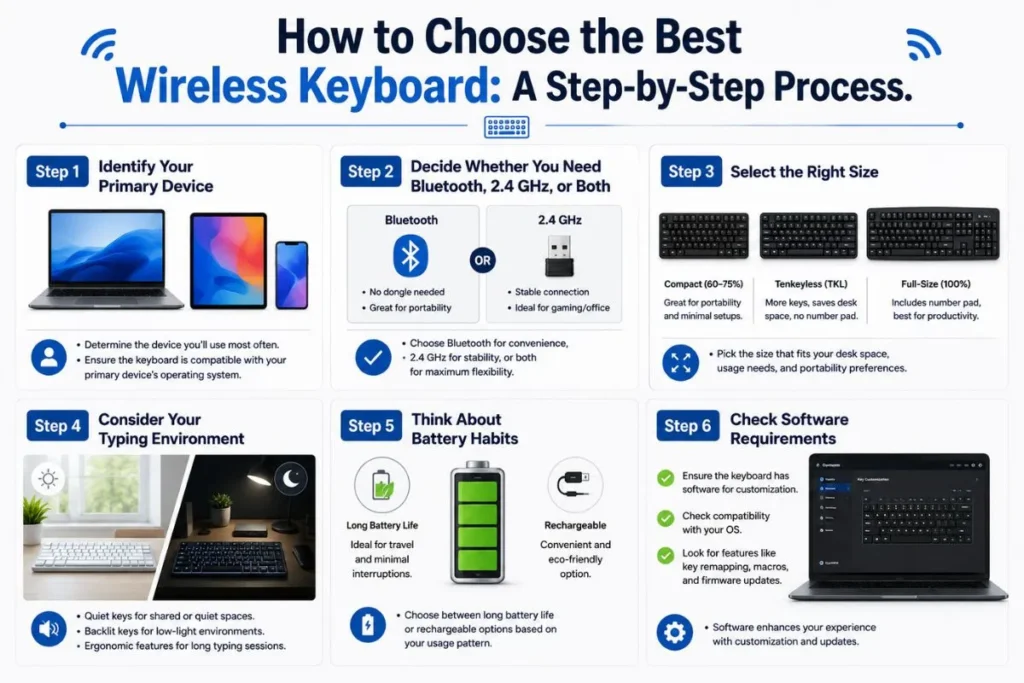
Step 1: Identify Your Primary Device
Start with the device you use most.
Ask:
- Is it a Windows PC?
- A Mac?
- A tablet?
- A smartphone?
- Several devices?
This immediately narrows your options. For example, a keyboard that depends entirely on a USB-A receiver may be inconvenient for a tablet with USB-C.
Step 2: Decide Whether You Need Bluetooth, 2.4 GHz, or Both
Choose Bluetooth if you prioritize:
- Tablets
- Phones
- Multi-device use
Choose 2.4 GHz if you prioritize:
- A dedicated desktop connection
- Fast, simple setup
- Responsive performance
Choose both if you want maximum flexibility.
Step 3: Select the Right Size
Ask how often you use:
- The number pad
- Function keys
- Navigation keys
- Dedicated media controls
Do not choose a compact keyboard simply because it looks cleaner. A missing key that you use hundreds of times each week can quickly become frustrating.
Step 4: Consider Your Typing Environment
If you work near other people, keyboard noise matters. A loud mechanical keyboard may be enjoyable at home but distracting in a shared office.
Consider:
- Switch type
- Stabilizer noise
- Desk surface
- Keycap material
- Acoustic design
Step 5: Think About Battery Habits
Be honest about how you manage devices. If you regularly forget to charge accessories, a keyboard with very long battery life or replaceable batteries may suit you better. If you already charge devices regularly, a rechargeable model may be convenient.
Step 6: Check Software Requirements
Some advanced keyboards depend on companion software for:
- Key remapping
- Macros
- Lighting
- Firmware updates
- Profiles
Check whether the software supports your operating system. Also consider whether important settings can be saved directly to the keyboard. Onboard memory can be useful when switching computers.
USB Receiver Storage
If you travel, check whether the keyboard has a secure place to store its receiver. A tiny receiver is easy to lose.
Keyboard Angle
A keyboard may look attractive in product photos but feel uncomfortable if its typing angle does not suit you.
Check whether it includes:
- Adjustable feet
- Multiple height positions
- A fixed low-profile design
Key Layout
Regional layouts can differ. For example, the placement or size of certain keys may vary between ANSI, ISO, and other layouts. If you have developed muscle memory for a particular layout, check carefully before ordering.
Replacement Keycaps and Parts
This matters more for mechanical and customizable keyboards. Not every keyboard uses standard keycap sizes.
If customization is important, investigate:
- Keycap compatibility
- Switch replacement options
- Availability of replacement parts
Wake-Up Behavior
Some wireless keyboards enter a low-power state to save battery. On certain models, the first key press may wake the keyboard before normal typing resumes. This can be a minor issue for casual use but annoying during fast workflows.
Common Mistakes People Make When Buying a Wireless Keyboard

Buying Based Only on Brand
Well-known brands can produce excellent keyboards, but brand reputation does not guarantee that every layout or model suits your needs. Compare the actual features.
Ignoring the Layout
A keyboard can have great build quality and still frustrate you because important keys are missing or relocated. Always inspect the layout.
Assuming All Wireless Connections Perform the Same
Bluetooth and 2.4 GHz connections serve different needs. Connection quality can also vary between devices and environments.
Paying for Features You Will Never Use
Premium features can increase the price significantly.
Examples include:
- Extensive RGB customization
- Advanced macro systems
- Hot-swappable switches
- Specialized controls
These can be worthwhile for the right user but unnecessary for someone who simply needs a comfortable keyboard for email and documents.
Ignoring Ergonomics
A keyboard should not be evaluated only by its switches.
Consider your entire setup:
- Desk height
- Chair position
- Monitor placement
- Mouse position
- Wrist posture
A compact keyboard may even improve comfort for some users by allowing the mouse to sit closer to the center of the body.
How to Set Up a Wireless Keyboard Properly
Setting Up Bluetooth
- Turn on the keyboard.
- Activate pairing mode according to the manufacturer’s instructions.
- Open Bluetooth settings on your computer, tablet, or phone.
- Select the keyboard from the available devices.
- Complete any pairing code or confirmation process.
- Test typing and special keys.
If the keyboard supports multiple device profiles, assign each profile clearly so switching is easier later.
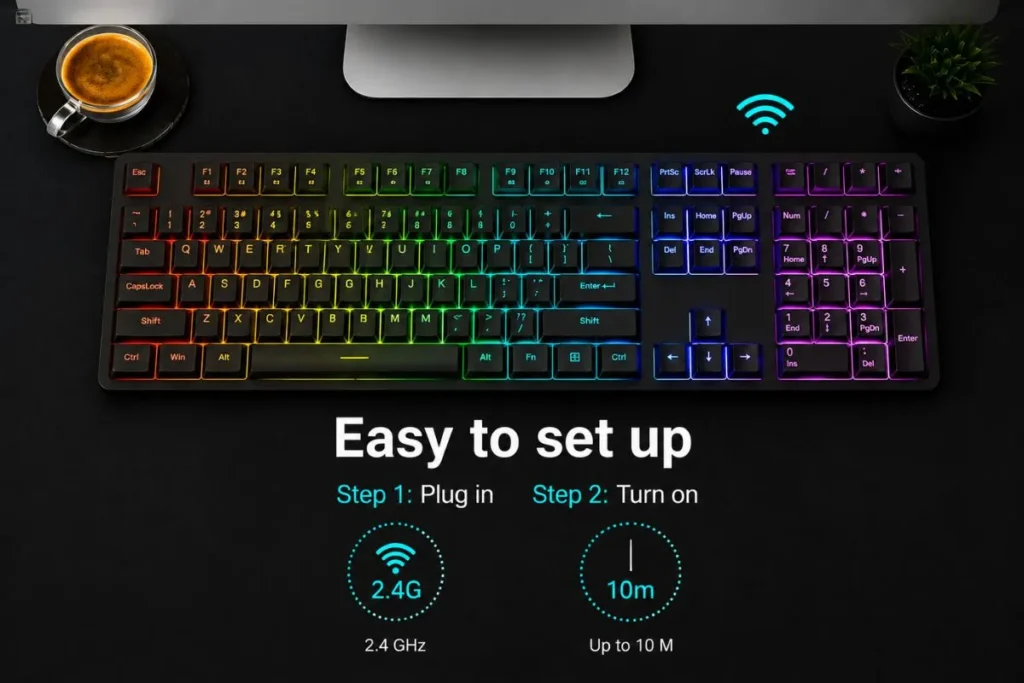
Setting Up a 2.4 GHz Receiver
- Insert the receiver into a compatible USB port.
- Turn on the keyboard.
- Wait for the connection to establish.
- Test basic typing.
- Install optional software only if you need additional features.
If connection problems occur, avoid placing the receiver behind a heavily obstructed desktop area when possible. Nearby wireless interference and physical obstructions can sometimes affect performance.
Troubleshooting Common Wireless Keyboard Problems
The Keyboard Will Not Connect
Try these steps:
- Check the battery level.
- Turn the keyboard off and on.
- Confirm the correct wireless mode is selected.
- Re-enter Bluetooth pairing mode.
- Remove the keyboard from the device’s Bluetooth list and pair again.
- Restart the computer or device.
- Check for operating system or keyboard firmware updates.
The Connection Keeps Dropping
Possible causes include:
- Low battery
- Wireless interference
- Excessive distance
- Bluetooth adapter issues
- Software or driver problems
For a 2.4 GHz keyboard, try a different USB port or reposition the receiver. For Bluetooth, test the keyboard with another compatible device. This can help determine whether the problem comes from the keyboard or the original computer.
Some Keys Produce the Wrong Characters
Check:
- Keyboard language settings
- Operating system layout
- Mac/Windows mode
- Function-layer settings
This problem often comes from a software layout mismatch rather than a hardware failure.
The Keyboard Feels Delayed
First, identify the connection type.
Then:
- Charge or replace the battery.
- Reduce distance from the receiver or host device.
- Check for interference.
- Update relevant software or firmware.
- Test with another device.
If you are comparing keyboards for gaming, seek model-specific latency information from reliable independent testing rather than assuming that every wireless keyboard performs identically.
Best Practices for Using a Wireless Keyboard
A few simple habits can improve reliability and lifespan.
- Keep firmware updated when updates address relevant problems.
- Clean the keyboard regularly.
- Avoid storing the receiver loosely in a bag.
- Turn off unnecessary lighting when maximum battery life matters.
- Use the correct charging cable and power source recommended by the manufacturer.
- Keep Bluetooth and wireless drivers updated when troubleshooting connection problems.
- Protect portable keyboards during travel.
- Learn the device-switching shortcuts if you use multiple computers.
For more general advice about choosing computer accessories and building a practical setup, a contextual internal link to technology buying guides on Techh AtoZ could help readers continue their research.
Are Premium Wireless Keyboards Worth the Money?
Sometimes, but not always. A premium keyboard may offer improvements in:
- Materials
- Switches
- Wireless technology
- Software
- Multi-device functionality
- Keycap quality
- Customization
- Acoustic design
However, a higher price does not guarantee a better experience for every user. A simple keyboard may be the smarter purchase if you only need:
- Reliable typing
- Comfortable keys
- Long battery life
- One-device connectivity
On the other hand, a professional who uses several computers every day may save time with reliable device switching and customizable shortcuts. The key question is not, “What is the most expensive keyboard?” A better question is, “Which features will improve my daily workflow?”
Wireless Keyboard Buying Checklist
Before placing an order, review these points:
- Is the keyboard compatible with my main device?
- Does it support Bluetooth, 2.4 GHz, or both?
- Do I need a numeric keypad?
- Is the layout comfortable for my typing habits?
- Is the keyboard quiet enough for my environment?
- Does it support multiple devices if I need that feature?
- Is the battery system practical for me?
- Does backlighting significantly affect battery life?
- Are the operating system shortcuts compatible with my workflow?
- Do I need software for key remapping or other features?
- Is the keyboard easy to carry if I travel?
- Have I checked the regional key layout?
- Does the price reflect features I will actually use?
This checklist can prevent many common buying mistakes.
What Makes a Wireless Keyboard Good in 2026?
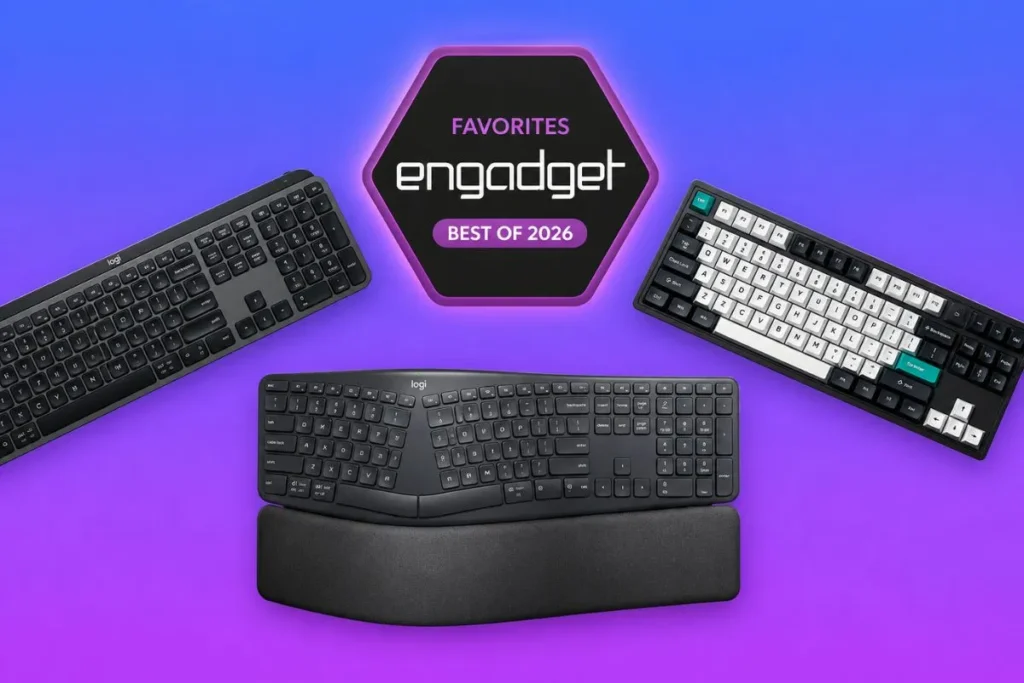
The wireless keyboard market continues to offer more choices across different sizes, connection methods, and switch types. That variety is useful, but it also makes generic “best keyboard” recommendations less reliable. A good wireless keyboard should perform its basic job consistently.
That means:
- Stable connectivity
- Comfortable typing
- Suitable layout
- Practical battery performance
- Reliable compatibility
Advanced features should come after those fundamentals. For example, RGB lighting cannot compensate for a layout that slows down your work. Hot-swappable switches are not useful to someone who never plans to modify the keyboard. Multi-device pairing has little value if you only use one computer. The best keyboard is therefore the one that removes friction from your daily routine.
Frequently Asked Questions
Q01. Are wireless keyboards reliable?
Ans: Yes. A quality wireless keyboard can be reliable for everyday work, typing, and other tasks. Reliability depends on the specific model, connection method, battery condition, device compatibility, and wireless environment.
Q02. Is Bluetooth or 2.4 GHz better for a wireless keyboard?
Ans: Neither is universally better. Bluetooth is convenient for tablets, phones, and multi-device setups, while 2.4 GHz wireless can be useful for a dedicated and responsive computer connection.
Q03. Are wireless keyboards good for gaming?
Ans: Yes, many are suitable for gaming. However, gaming performance depends on the specific keyboard and its wireless implementation. Users who prioritize responsiveness should check independent testing for the models they are considering.
Q04. How long does a wireless keyboard battery last?
Ans: Battery performance can differ greatly depending on the model and how it is used. Backlighting, RGB effects, connection mode, battery capacity, and power-saving features can all affect runtime. Check the manufacturer’s specifications for the exact model.
Q05. Can I connect one wireless keyboard to multiple devices?
Ans: Many modern keyboards support multiple Bluetooth devices or a combination of Bluetooth and 2.4 GHz connections. Check how many devices the specific model supports and how switching works.
Q06. Do wireless keyboards work with tablets and phones?
Ans: Many Bluetooth keyboards work with compatible tablets and smartphones. However, layout support, shortcuts, and compatibility can vary by operating system.
Q07. Is a mechanical wireless keyboard better than a membrane keyboard?
Ans: Not necessarily. Mechanical keyboards offer more switch choices and customization, while membrane keyboards can be quieter, lighter, and more affordable. The better option depends on your typing preferences and use case.
Q08. Do wireless keyboards have input lag?
Ans: Wireless keyboards can have different levels of latency depending on the connection technology and implementation. For ordinary typing and office work, this is usually not a major concern. Competitive users should research model-specific performance.
Q09. Should I buy a full-size or compact wireless keyboard?
Ans: Choose based on the keys you use. A full-size model is useful for frequent number entry, while compact layouts save desk space and can improve portability.
Q10. Can a wireless keyboard work while charging?
Ans: Some rechargeable keyboards can continue operating while connected to a charging cable, but this depends on the model. Check the manufacturer’s documentation before assuming wired use is supported.
Q11. Why does my wireless keyboard disconnect randomly?
Ans: Common causes include low battery, wireless interference, distance from the receiver or device, Bluetooth issues, and outdated software or firmware. Testing the keyboard with another device can help identify the source.
Q12. What should beginners look for in their first wireless keyboard?
Ans: Beginners should prioritize compatibility, a comfortable layout, reliable connectivity, practical battery life, and a typing feel they enjoy. Avoid paying extra for advanced features before deciding whether you actually need them.
Final Thoughts
Choosing the best wireless keyboard in 2026 is less about finding a universal winner and more about matching the keyboard to your everyday needs. Start with compatibility and connection type, then choose the layout, size, typing mechanism, and battery system that fit your workflow.
For most people, a reliable keyboard with comfortable keys and stable wireless connectivity will provide more value than a model packed with features they never use. Professionals may benefit from multi-device switching and customizable controls, while gamers may prioritize responsive wireless performance. Travelers may prefer portability, and spreadsheet users may still find a full-size layout essential.
Before buying, check the details that product photos often hide: key layout, operating system support, receiver requirements, battery behavior, and access to the keys you use most. A thoughtful choice will make your desk setup more comfortable and productive for years.