 -by
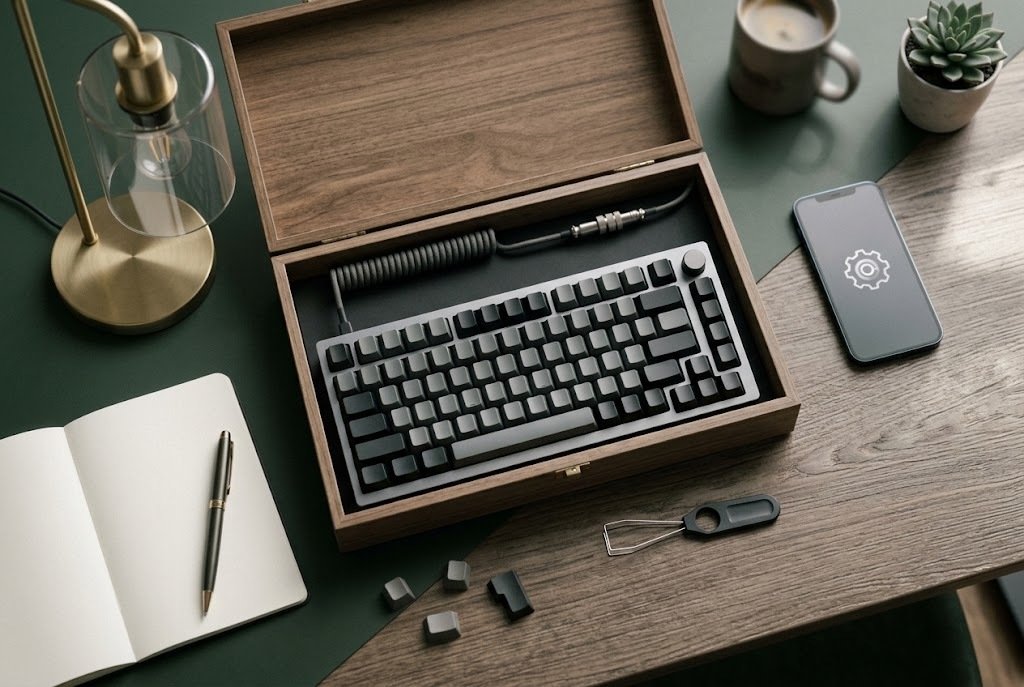
-by A keyboard and mouse usually require two separate devices and a reasonable amount of desk space. That arrangement works well at a traditional workstation, but it becomes less convenient in small offices, kiosks, conference rooms, living rooms, mobile workspaces, and other compact environments. The Adesso WKB-3100UB wireless mini trackball keyboard takes a different approach. It combines an 87-key compact keyboard, a built-in optical trackball, mouse buttons, and 2.4 GHz wireless connectivity into one device.
The idea is simple: type and control the cursor without reaching for a separate mouse. This guide explains what the WKB-3100UB is, how the trackball keyboard works, its documented specifications, practical strengths and limitations, setup considerations, troubleshooting steps, and the types of users who are most likely to benefit from it.
It also compares this design with conventional keyboard-and-mouse setups, touchpad keyboards, and larger ergonomic trackball keyboards. Whether you are a beginner considering your first integrated pointing device or a professional looking for a compact input solution, the most important question is not simply whether this keyboard has a long feature list. It is whether its particular combination of size, layout, trackball, and wireless receiver fits the way you actually work.
What Is the Adesso WKB-3100UB?
The Adesso WKB-3100UB is a compact wireless keyboard with a built-in optical trackball and mouse controls. Instead of moving an external mouse across a desk, you rotate the trackball with your fingers to move the on-screen pointer while keeping both keyboard and pointing controls in the same device.
According to Adesso’s current product information, the WKB-3100UB uses a 2.4 GHz RF wireless connection through a USB receiver, has an 87-key US layout, an 800 DPI optical trackball, and a stated wireless range of up to 30 feet or 10 meters. Its dimensions are approximately 11.75 × 6.00 × 0.75 inches. This makes the product less like a conventional desktop keyboard and more like an all-in-one control device.
The concept can be useful when:
- Desk space is limited.
- A separate mouse is inconvenient.
- The keyboard is used away from the computer.
- The computer is connected to a television or display.
- A kiosk or shared workstation needs a compact input device.
- The user wants to keep cursor control physically attached to the keyboard.
Search Intent: What Do People Want to Know About This Keyboard?
People searching for this product or for a trackball keyboard are likely to have a mix of informational and commercial investigation intent.
Their practical questions often include:
- What exactly is the WKB-3100UB?
- How does its built-in trackball work?
- Is it suitable for everyday typing?
- Does it replace a mouse completely?
- Is the compact layout comfortable?
- How does the 2.4 GHz connection work?
- What operating systems and devices is it designed for?
- Is a trackball better than a touchpad?
- What limitations should a buyer understand before choosing it?
- Who should choose a larger ergonomic trackball keyboard instead?
A useful product guide should answer those questions before encouraging a purchase.
Adesso WKB-3100UB Specifications at a Glance
The following table summarizes the core specifications published by Adesso. Product specifications and compatibility information can change between revisions or listings, so buyers should still check the current seller or manufacturer information before purchasing.
| Feature | Published specification |
| Product | Adesso WKB-3100UB |
| Keyboard type | Wireless mini trackball keyboard |
| Wireless technology | 2.4 GHz RF |
| Receiver connection | USB |
| Stated working range | Up to 30 feet / 10 meters |
| Keyboard layout | 87-key US layout |
| Key type | Membrane |
| Trackball type | Built-in optical trackball |
| Trackball resolution | 800 DPI |
| Trackball diameter | 0.625 inch / 15 mm |
| Power | 2 AA batteries |
| Dimensions | 11.75 × 6.00 × 0.75 inches |
| Weight | About 1.19 pounds / 550 g |
| Published switch life | 5 million cycles |
These specifications come from Adesso’s product page and product documentation.
A Note About Compatibility Information
One important detail deserves attention: the operating-system lists published on product pages and older documentation focus on versions of Microsoft Windows, including legacy versions. That information should not automatically be interpreted as a guarantee of compatibility with every modern operating system, tablet, television, or device.
The keyboard uses a USB wireless receiver, but USB connectivity alone does not guarantee that every device will support every key or function. Before purchasing for macOS, Linux, ChromeOS, a smart TV, a gaming device, or another non-Windows platform, verify compatibility with the manufacturer or the specific device documentation. That small check can prevent one of the most common buying mistakes: assuming that a USB receiver means universal compatibility.
How a Trackball Keyboard Works
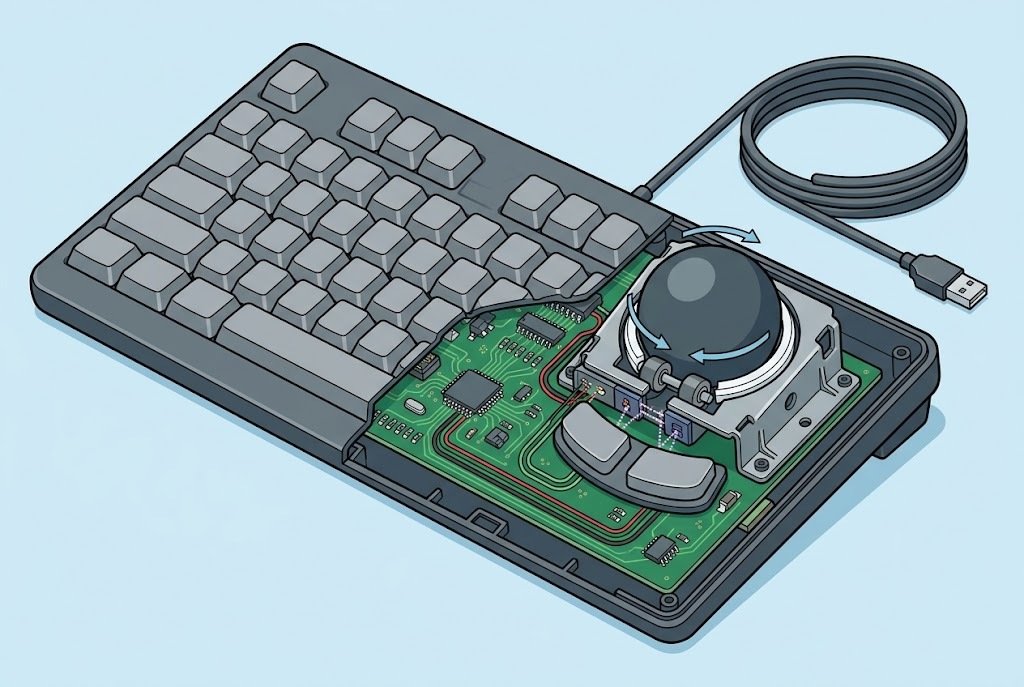
A trackball is a stationary pointing device. The housing stays in place while you rotate the ball itself. A conventional mouse works by moving the entire mouse across a surface. With a trackball, the device does not need to travel across the desk.
The basic workflow looks like this:
- Plug the wireless receiver into a suitable USB port.
- Power the keyboard using its batteries.
- Use the keyboard for typing.
- Rotate the built-in trackball to move the cursor.
- Use the integrated mouse buttons to select, open, drag, or interact with on-screen items.
The practical advantage is that cursor control requires very little physical workspace. For example, imagine a keyboard placed on a narrow shelf beneath a wall-mounted display. A traditional mouse needs a separate surface beside it. A trackball keyboard can keep both text input and pointer control within the same compact footprint.
Why the Trackball Position Matters
Not all trackball designs feel the same. The size of the ball, its location, the placement of mouse buttons, and the user’s hand size can significantly affect comfort. The WKB-3100UB uses a relatively small 15 mm trackball with an 800 DPI optical sensor. That design can work well for ordinary navigation and compact environments.
However, users who spend long periods doing highly precise pointer work may prefer a larger pointing device or a dedicated trackball. A small integrated trackball is best understood as a convenience-focused design rather than a replacement for every type of precision input device.
Key Features and Their Meaning in Everyday Use

01. Compact 87-Key Layout
The WKB-3100UB measures under 12 inches wide, which is one of its defining characteristics. Adesso positions the keyboard for compact environments and portable use.
Why this can be useful
A compact keyboard can:
- Leave more room on a desk.
- Fit into small workstations.
- Be easier to store.
- Travel more easily than a full-size keyboard.
- Keep typing and cursor controls close together.
The trade-off
Compact layouts require adaptation.
A full-size keyboard user may expect:
- A dedicated numeric keypad.
- More spacing between key groups.
- Larger overall hand placement.
- Dedicated navigation or shortcut areas.
The WKB-3100UB includes an embedded numeric keypad rather than a separate full-size number pad. That may be perfectly acceptable for occasional number entry, but users who enter large amounts of numerical data should consider whether a full-size layout would be more efficient. This is an important buying principle: smaller is not automatically better. Compactness is valuable only when it solves a real space or portability problem.
02. Built-In Optical Trackball
The built-in trackball is the feature that separates this product from an ordinary compact wireless keyboard. Adesso lists an 800 DPI optical trackball with a 15 mm diameter.
For everyday tasks, a built-in pointing device can be useful for:
- Opening applications.
- Browsing websites.
- Moving through menus.
- Controlling media PCs.
- Working with presentations.
- Navigating kiosk software.
- Performing basic office tasks.
Where it may be less suitable
A small integrated trackball may not be ideal for everyone.
Potential limitations include:
- A learning period for users accustomed to a mouse.
- Less physical precision than a specialized pointing device in some tasks.
- A compact control area that may feel cramped for larger hands.
- Possible preference issues depending on which hand or fingers a user naturally uses for pointer control.
For photo editing, detailed CAD work, competitive gaming, or other pointer-intensive tasks, a dedicated mouse or specialized trackball may be a better choice.
03. 2.4 GHz Wireless Connection
The WKB-3100UB uses a dedicated USB receiver and 2.4 GHz RF wireless technology rather than a Bluetooth connection. Adesso states a working range of up to 30 feet or 10 meters under its published specifications. Actual usable range can vary depending on obstacles, wireless interference, receiver placement, and the environment.
Why a dedicated receiver can be useful
A USB receiver can offer a relatively straightforward setup:
- Insert the receiver.
- Install the batteries.
- Turn on the keyboard if required.
- Begin using the device when recognized.
It can also be useful for desktop systems without Bluetooth.
The Downside
The receiver occupies a USB port. Losing a proprietary receiver can also create a replacement problem, depending on manufacturer support and receiver compatibility.
For this reason, it is wise to:
- Keep the receiver with the keyboard when transporting it.
- Avoid leaving it permanently exposed on the side of a laptop.
- Check whether replacement receivers are officially supported before relying on the device for business-critical work.
04. Membrane Keys
The keyboard uses membrane switches. Adesso lists a switch life of 5 million cycles. Membrane keyboards generally differ from mechanical keyboards in feel and construction.
Potential advantages
- Usually quieter than many mechanical designs.
- Often less expensive.
- Suitable for ordinary office typing.
- Can support a slim or compact keyboard design.
Potential disadvantages
- Users who prefer strong tactile feedback may find them less satisfying.
- The typing feel is different from mechanical switches.
- Heavy typists may have personal preferences that make a larger or different keyboard more comfortable.
Keyboard feel is highly subjective. Specifications can describe the switch type, but they cannot tell you whether the typing experience will suit your hands.
Who Is the Adesso WKB-3100UB Best For?
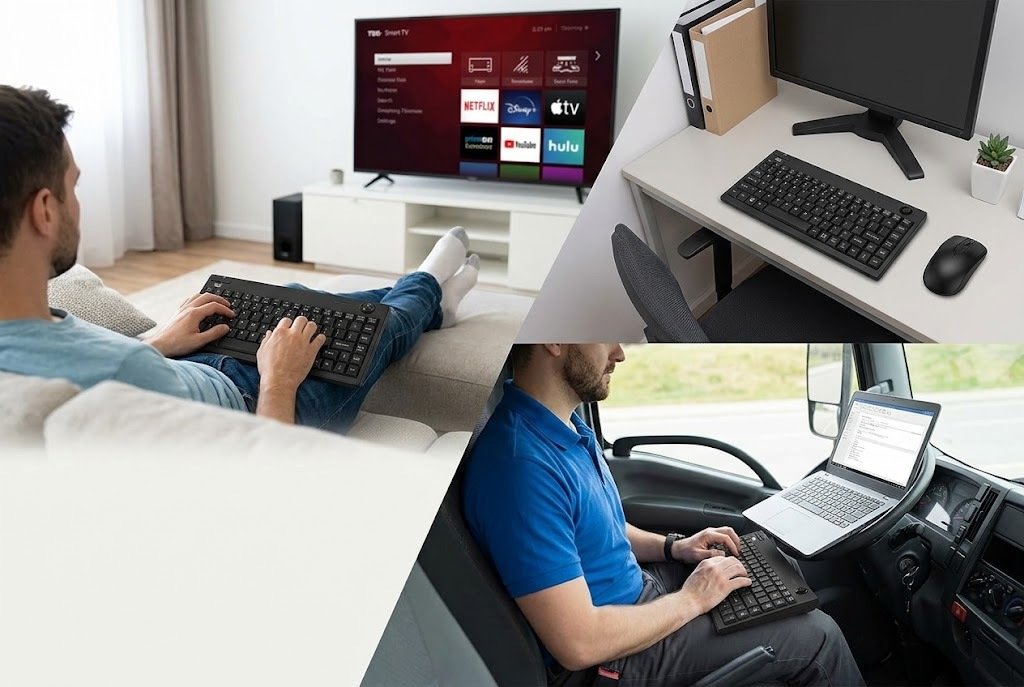
The WKB-3100UB is most compelling when its integrated design solves a specific problem.
Small Office and Home Office Users
A small desk can become crowded quickly. A monitor, notebook, phone, mouse, documents, charger, and other accessories can leave little working space. A trackball keyboard reduces the need for a separate mouse surface. This can be useful if you want a cleaner, more compact setup. For readers interested in improving their overall setup, practical computer and technology guides on Tech All World could serve as a relevant internal resource.
Kiosk and Shared Workstation Environments
Adesso specifically identifies compact spaces and kiosk-style environments among the intended use cases for the product. In these situations, an integrated pointing device can simplify the physical setup.
However, organizations should still evaluate:
- Security requirements.
- Cleaning procedures.
- User accessibility.
- Expected daily usage.
- Software compatibility.
- The risk of receiver loss or unauthorized removal.
A keyboard that is convenient for occasional use may not be the right device for a high-volume public workstation.
Living Room and Media PC Users
A computer connected to a television often creates a distance problem. Walking back to a desk for a mouse can interrupt the experience.
A wireless keyboard with integrated pointer control can help with:
- Browsing websites.
- Searching for content.
- Opening applications.
- Basic media PC navigation.
The stated 30-foot range may be useful in this type of setup, although real-world results depend on the environment.
Mobile Professionals
The compact dimensions make the device easier to carry than a full-size desktop keyboard.
It may suit professionals who move between:
- Temporary offices.
- Meeting rooms.
- Training environments.
- Presentation spaces.
- Shared workstations.
The main question is whether portability matters more to you than a larger typing surface.
Who Should Think Twice Before Buying?
A good product recommendation should explain who may not benefit.
The WKB-3100UB may be less suitable if you:
- Type large amounts of numeric data every day.
- Need a full-size keyboard with a dedicated number pad.
- Prefer mechanical keyboard feedback.
- Need extensive shortcut or multimedia controls.
- Require guaranteed modern cross-platform compatibility.
- Perform highly precise cursor work for hours.
- Prefer a large ergonomic keyboard with a palm rest.
- Frequently switch between multiple devices and want built-in multi-device support.
The product’s compactness is its advantage, but that same design creates compromises.
Trackball Keyboard vs Traditional Keyboard and Mouse
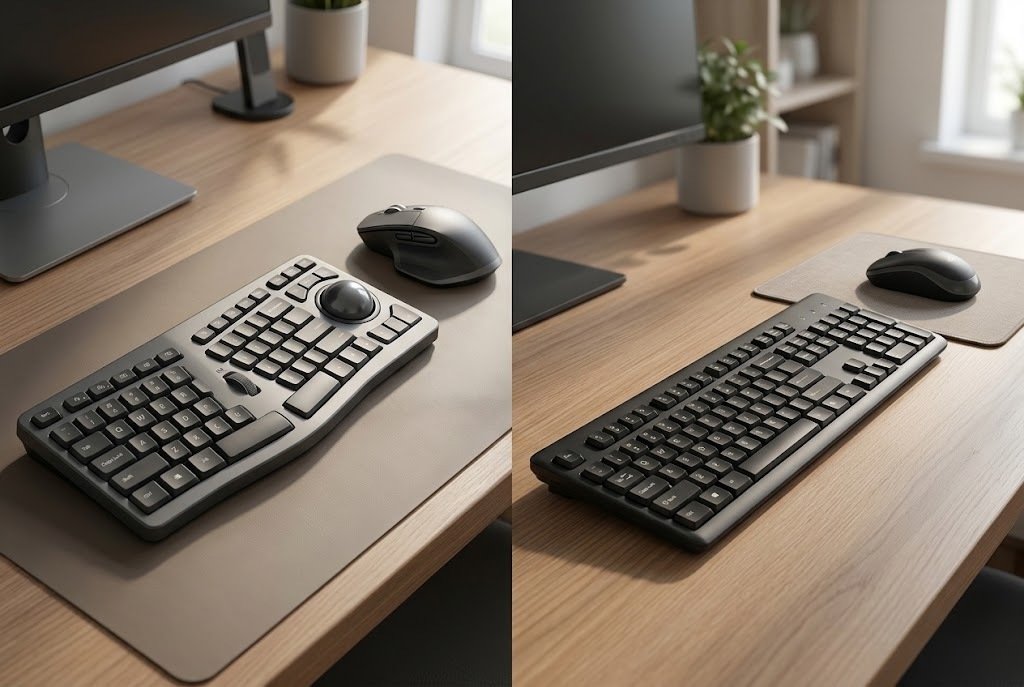
The easiest way to understand the WKB-3100UB is to compare the working styles.
| Feature | WKB-3100UB Style | Traditional Keyboard + Mouse |
| Number of devices | One integrated input unit | Usually two devices |
| Desk space | Low | Higher |
| Cursor control | Built-in trackball | External mouse |
| Mouse movement surface | Not required | Usually required |
| Typing area | Compact | Varies |
| Portability | Convenient | Depends on both devices |
| Precision potential | Suitable for general navigation | Depends on mouse and surface |
| Ergonomic flexibility | Limited by fixed layout | Keyboard and mouse can be positioned independently |
Neither setup is universally superior. A traditional keyboard and mouse provide more freedom to position each device independently. That can be valuable for long work sessions. An integrated trackball keyboard simplifies the setup and reduces the required physical space. The right choice depends on the specific problem you need to solve.
Trackball vs Touchpad Keyboard
A trackball keyboard and a touchpad keyboard both integrate cursor control, but the experience is different.
Trackball
You move the pointer by rotating a physical ball.
Potential advantages include:
- No need to move the entire device.
- Small control area.
- Physical tactile feedback.
- Convenient use in tight spaces.
Touchpad
You move the pointer by sliding your finger across a flat surface.
Potential advantages include:
- Familiarity for laptop users.
- Gesture support on some devices.
- No moving ball.
Which is better?
Choose a trackball if you prefer stationary physical cursor control and want to operate the pointer with minimal device movement. Choose a touchpad if you are already comfortable with laptop-style navigation or prefer finger gestures. Adesso also offers touchpad-based keyboard models, illustrating that these are different design approaches rather than direct upgrades over one another.
WKB-3100UB vs Larger Ergonomic Trackball Keyboards
A larger ergonomic trackball keyboard may offer:
- A more spacious layout.
- Larger trackball controls.
- Split or curved key arrangements.
- Palm support.
- More dedicated keys.
Adesso’s own comparison table places the WKB-3100UB alongside larger models such as the WKB-3150UB and WKB-3500UB, which use larger overall designs and 1,000 DPI trackballs. The WKB-3100UB is the better conceptual choice when compactness is the priority.
A larger model may make more sense when long-session comfort and a more expansive layout are the priority. Do not compare them only by price or feature count. Compare them by how long and where you expect to use them.
How to Set Up the Adesso WKB-3100UB
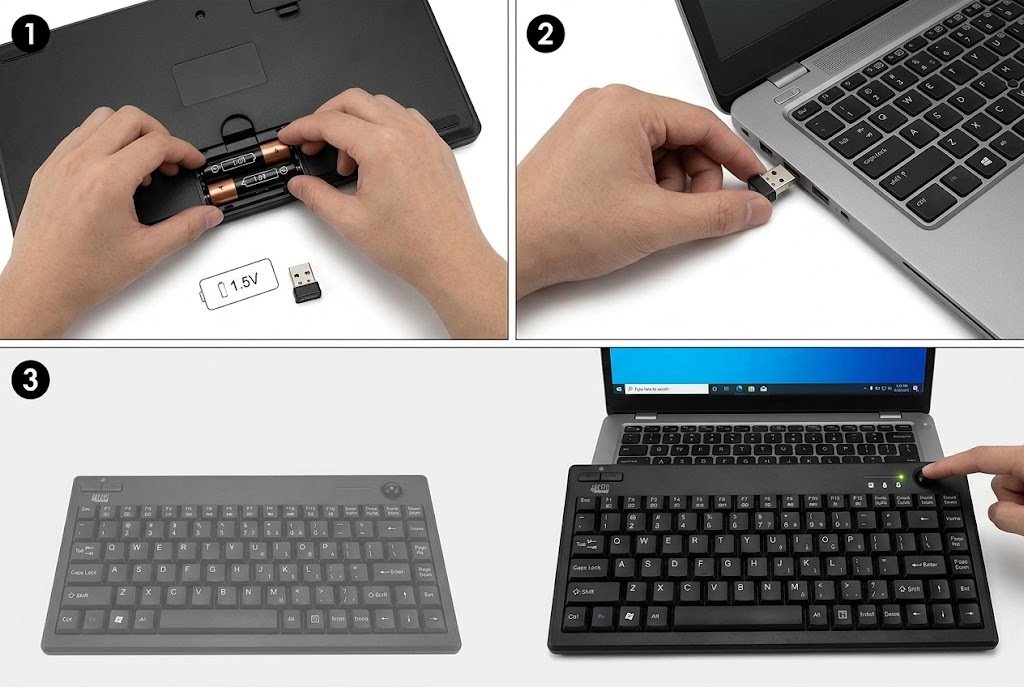
The exact procedure should follow the quick-start documentation included with the product. In general, the setup process is straightforward.
Step 1: Check the Computer and USB Port
Confirm that your target device has an available USB port for the wireless receiver. If you are using a modern device with only USB-C ports, you may need a compatible adapter. Before buying an adapter, verify that the operating system and hardware support the keyboard.
Step 2: Install the Batteries
The product documentation lists two AA batteries as the power source and package contents. Insert the batteries according to the polarity markings inside the battery compartment.
Step 3: Connect the Wireless Receiver
Insert the supplied receiver into the USB port. Avoid hiding the receiver behind thick metal equipment if possible, because physical obstructions and nearby wireless equipment can affect radio performance.
Step 4: Allow the Device to Initialize
Wait for the operating system to recognize the input device.
If it does not work immediately:
- Check the battery orientation.
- Test another USB port.
- Restart the computer.
- Remove and reconnect the receiver.
- Test the keyboard on another compatible computer if available.
Step 5: Test Both Input Methods
Do not stop after confirming that the keyboard types.
Test:
- Letter and number keys.
- Cursor movement.
- Left and right mouse buttons.
- Any lock indicators or embedded functions.
- Wireless operation at your intended working distance.
This helps you identify a problem before depending on the device for work or a presentation.
Getting Comfortable With a Trackball
Beginners sometimes judge a trackball too quickly. A mouse relies on a motion pattern most computer users have practiced for years. A trackball changes that pattern. Here are practical ways to adapt.
Start With Slow Navigation
Spend a few minutes doing simple tasks:
- Open folders.
- Move across a web page.
- Select browser tabs.
- Click icons.
Do not begin with precision-heavy tasks.
Adjust Pointer Settings Carefully
Operating-system pointer speed settings can change how the trackball feels.
If the cursor seems:
- Too slow: increase pointer speed gradually.
- Too fast: reduce the speed.
- Difficult to control: experiment with acceleration settings if your operating system provides them.
Change one setting at a time. Otherwise, you may not know which adjustment improved or worsened the experience.
Learn the Best Finger Position
There is no universal grip. Some users naturally use the thumb, while others may prefer another finger depending on the trackball’s placement and hand position. The goal is to avoid unnecessary tension. If you constantly stretch or twist your hand to reach the ball, the layout may not suit you.
Common Problems and Troubleshooting
The Keyboard Does Not Respond
Check the basics first:
- Make sure the batteries are installed correctly.
- Try fresh batteries.
- Remove and reconnect the USB receiver.
- Test another USB port.
- Restart the computer.
- Test the keyboard with another compatible computer.
If the keyboard still does not work, consult the manufacturer’s support resources or product documentation before assuming the keyboard itself is defective.
The Trackball Moves Erratically
Possible causes can include:
- Low battery power.
- Wireless interference.
- Receiver placement.
- Operating-system pointer settings.
- Dirt or debris affecting the physical mechanism.
Start with the simplest checks: batteries, receiver connection, and another computer. Avoid using aggressive cleaning methods or liquids unless the manufacturer specifically recommends them.
The Wireless Range Is Shorter Than Expected
The stated range is a maximum specification under appropriate conditions, not a guarantee for every room.
Performance may be affected by:
- Walls.
- Metal objects.
- USB port placement.
- Other wireless devices.
- Physical interference.
- Battery condition.
Move the receiver to a clearer location and test again.
Some Keys Do Not Work as Expected
First determine whether the problem is:
- A hardware issue.
- An operating-system layout setting.
- An application-specific shortcut issue.
- A compatibility limitation.
For example, a keyboard configured as a US layout may produce unexpected characters if the operating system uses a different keyboard language setting. Check the operating system’s keyboard layout before assuming a physical key is faulty.
Frequently Overlooked Buying Considerations
01. The Keyboard Layout Is US-Based
The documented layout is an 87-key US layout. This matters for international users. Key labels and physical layouts can differ between regions. Before purchasing, consider:
- Your preferred keyboard language.
- The symbols you use regularly.
- Whether your operating system can map the physical layout comfortably.
- Whether you need ISO rather than ANSI-style physical key arrangements.
Software can change character mapping, but it cannot change the physical labels printed on the keys.
02. USB Receiver Dependency
The wireless connection depends on the supplied receiver. Before traveling, pack the keyboard and receiver together. A compact receiver is easy to misplace.
03. Battery Planning
The product uses replaceable AA batteries according to Adesso’s documentation. If the keyboard is used for travel, presentations, or business work, keeping spare batteries available can be more practical than discovering a power issue at an inconvenient time.
04. Modern Compatibility Should Be Verified
The published system requirements include older Windows versions and Windows 10 on the current product page. Do not assume that this list automatically confirms support for every newer platform or device.
This is especially important if the keyboard is being purchased for a newly released computer or non-Windows system.
Common Mistakes When Choosing a Trackball Keyboard
Buying It Only Because It Is Small
A compact device is useful when space matters. If you have a large desk and spend eight hours typing every day, a bigger keyboard may be more comfortable.
Ignoring the Numeric Keypad
An embedded number pad is not the same as a dedicated full-size number pad. If you work in accounting, spreadsheets, inventory systems, or data entry, test whether the compact arrangement matches your workflow.
Assuming It Is a Gaming or Design Tool
A built-in 800 DPI trackball can handle ordinary navigation, but specialized gaming and creative work often benefit from devices designed for those specific tasks. Choose based on workload, not on the assumption that one input device must do everything.
Forgetting About Keyboard Layout
International buyers should check the physical layout before ordering. A keyboard can technically function while still being frustrating to use because the printed keys do not match the user’s typing habits.
Expecting Every Modern Device to Support It Automatically
USB is only part of the compatibility question. The operating system, device firmware, available ports, and adapter support can all matter.
Pros and Cons
Advantages
- Combines keyboard and pointer control in one device.
- Compact 11.75-inch-wide design.
- Reduces the need for separate mouse space.
- Uses a dedicated 2.4 GHz wireless connection.
- Stated wireless range of up to 30 feet.
- Built-in 800 DPI optical trackball.
- 87-key layout with embedded numeric functionality.
- Uses replaceable AA batteries.
- Can suit compact workspaces, kiosks, conference environments, and media PC setups.
The specifications and intended use cases above are based on Adesso’s published product information.
Limitations
- Compact layout may feel cramped for some users.
- The small 15 mm trackball may not suit precision-intensive work.
- No dedicated full-size numeric keypad.
- USB receiver occupies a port.
- The documented layout is US-based.
- Published compatibility information focuses primarily on Windows versions, so other platforms should be verified.
- A fixed integrated layout provides less positioning flexibility than a separate keyboard and mouse.
Practical Buying Checklist
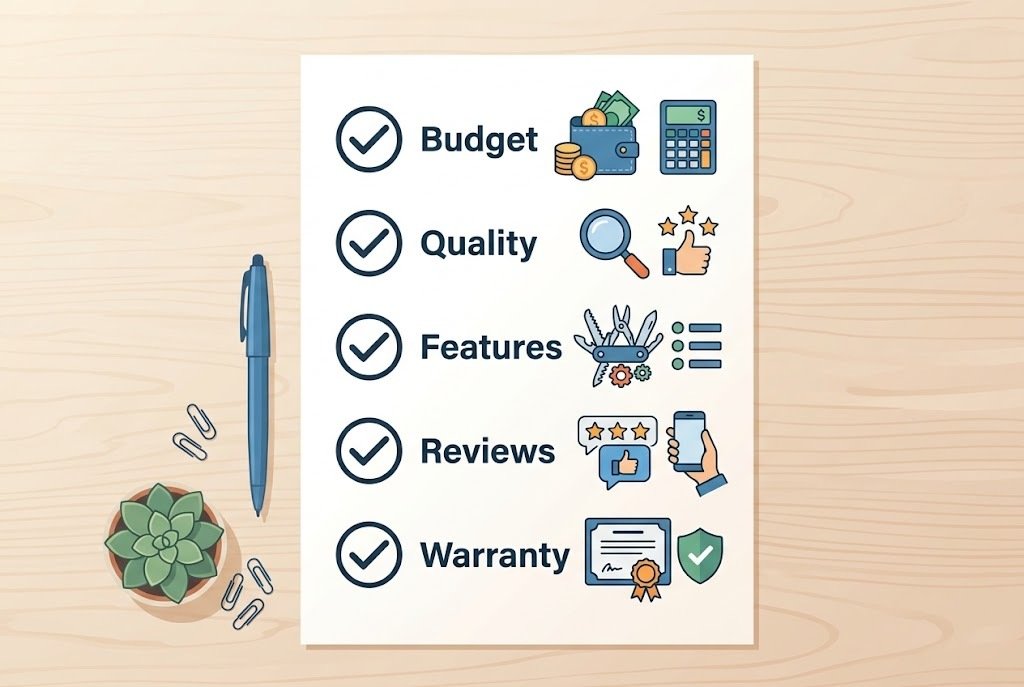
Before choosing the Adesso WKB-3100UB, ask yourself these questions:
- Do I actually need to save desk space?
If yes, an integrated pointing device may be useful. - Will I use the keyboard from a distance?
If yes, the 2.4 GHz wireless design and stated 30-foot range may be relevant. - Do I type large amounts of numerical data?
If yes, compare the embedded numeric keypad with a full-size alternative. - Do I perform precise graphics or design work?
If yes, consider whether a dedicated pointing device would be better. - Is my preferred keyboard layout US?
If not, check whether the physical key arrangement will be comfortable. - Does my computer have a suitable USB port?
If not, determine whether an adapter is necessary and supported. - What operating system will I use?
Verify compatibility rather than assuming universal support. - Will I transport the keyboard frequently?
If yes, plan how you will protect and store the USB receiver.
This checklist is often more valuable than comparing a long list of specifications.
Expert-Level Insight: Integration Creates Both Convenience and Compromise
The core design principle behind a trackball keyboard is integration.
Integration reduces:
- Desk clutter.
- Required mouse space.
- The number of devices you need to carry.
But integration also reduces flexibility. With separate devices, you can position the mouse and keyboard independently. With the WKB-3100UB, the pointing device remains fixed to the keyboard.
That distinction matters. A user working for a few minutes on a media PC may value simplicity far more than adjustable positioning. A professional typing and navigating for many hours may value the ability to place the keyboard and pointing device independently.
Therefore, the best question is not:
“Is a trackball keyboard better?”
The better question is:
“Is an integrated keyboard and pointing device a better solution for my workspace than separate devices?”
That is the decision framework that helps prevent an unnecessary purchase.
For broader input-device and workstation topics, technology hardware insights on Techh AtoZ would be a natural internal-link opportunity.
Frequently Asked Questions
Q01. What is the Adesso WKB-3100UB?
Ans: The Adesso WKB-3100UB is a compact 2.4 GHz wireless keyboard with an integrated optical trackball and mouse buttons. It uses a USB wireless receiver and is designed to reduce the need for a separate mouse.
Q02. Does the WKB-3100UB need a separate mouse?
Ans: For basic cursor control, the built-in trackball and mouse buttons are intended to provide the functions of a separate pointing device. Whether it fully replaces a mouse depends on the user’s workload and precision requirements.
Q03. What is the wireless range?
Ans: Adesso lists a working range of up to 30 feet or 10 meters. Actual range can vary depending on interference, obstacles, receiver placement, and battery condition.
Q04. How many keys does the keyboard have?
Ans: The WKB-3100UB uses an 87-key US layout according to Adesso’s published specifications.
Q05. What type of batteries does it use?
Ans: Adesso’s product documentation lists two AA batteries for the WKB-3100UB.
Q06. Is the trackball suitable for gaming?
Ans: It can perform general pointer functions, but the keyboard is primarily designed around compactness and integrated control. Users who need high-performance or highly precise gaming input may prefer a dedicated gaming mouse or another specialized pointing device.
Q07. Is it good for small desks?
Ans: Yes, compact spaces are one of the clearest use cases. The integrated trackball eliminates the need to reserve additional desk area specifically for moving a mouse.
Q08. Does it have a full-size numeric keypad?
Ans: No. The compact 87-key layout uses an embedded numeric keypad rather than a separate full-size number pad.
Q09. Can it work with macOS or Linux?
Ans: Do not assume compatibility solely because the keyboard uses USB. Adesso’s published system requirements focus on Windows versions, so users should verify compatibility with the manufacturer or their specific operating system before purchasing.
Q10. Is a trackball better than a touchpad?
Ans: Neither is automatically better. A trackball provides stationary physical cursor control, while a touchpad uses finger movement across a flat surface. Personal preference, workspace, and intended tasks should guide the decision.
Q11. Is the WKB-3100UB suitable for travel?
Ans: Its compact dimensions can make it easier to carry than a larger desktop keyboard. However, travelers should protect the USB receiver and carry spare batteries when dependable operation is important.
Q12. Is this keyboard a good choice for professional work?
Ans: It can be useful for professionals who prioritize compactness, mobility, and integrated cursor control. Professionals who spend long periods typing, need extensive numeric entry, or require precise pointer work should compare it with larger keyboards and separate pointing devices.
Final Verdict
The Adesso WKB-3100UB is best understood as a practical trackball keyboard for space-conscious and mobility-focused setups, not as a universal replacement for every keyboard and mouse combination. Its main strengths are straightforward: a compact 87-key design, integrated 800 DPI optical trackball, dedicated 2.4 GHz wireless connection, USB receiver, and a stated operating range of up to 30 feet.
These features can make it particularly useful for small desks, kiosks, conference spaces, media PCs, and situations where carrying separate input devices is inconvenient. Its limitations are equally important. The compact layout, small trackball, embedded numeric keypad, and platform-specific published compatibility information mean that it will not suit every workflow.
Before choosing it, focus on your workspace, typing habits, operating system, need for precision, and comfort with compact layouts. If integrated cursor control solves a real problem for you, the WKB-3100UB offers a focused and practical design. If flexibility and long-session comfort matter more, a larger keyboard and separate pointing device may be the better investment.