 -by
-by Cloud gaming has changed how people play video games. Instead of downloading massive game files or buying expensive hardware every few years, players can stream games directly from powerful remote servers. Services like GeForce NOW, Xbox Cloud Gaming, Amazon Luna, and Boosteroid allow gamers to enjoy AAA titles on almost any device.
However, your experience depends heavily on how well your gaming PC is optimized. Even if the games run on cloud servers, your computer and internet connection still affect image quality, input delay, and overall performance.
This guide explains everything you need to know about optimizing your gaming PC for cloud gaming, ensuring smooth gameplay with minimal lag and the best possible streaming quality.
Why Cloud Gaming Performance Depends on Your PC
Many people think a powerful graphics card is unnecessary for cloud gaming. While the remote server handles most rendering, your computer still performs important tasks, including:
- Decoding video streams
- Managing network traffic
- Running your browser or gaming client
- Processing controller and keyboard inputs
- Displaying high-quality video
A poorly optimized PC can introduce delays even with a fast internet connection.
Check Your Internet Connection First
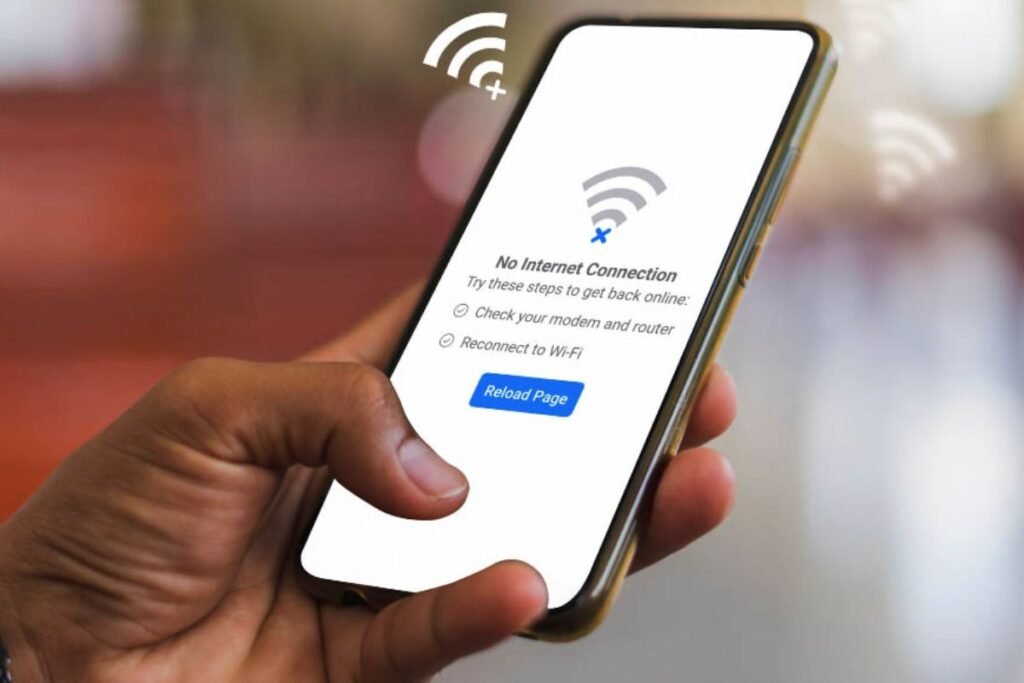
Your internet connection is the most important part of a successful cloud gaming setup.
Recommended Internet Speed
| Streaming Quality | Minimum Speed |
| 720p | 10 Mbps |
| 1080p | 20 Mbps |
| 1440p | 35 Mbps |
| 4K | 45–50 Mbps |
Besides speed, latency matters even more.
Aim for:
- Ping below 30 ms
- Jitter below 5 ms
- Packet loss near 0%
Stable internet is more valuable than extremely high download speeds.
Always Use an Ethernet Cable
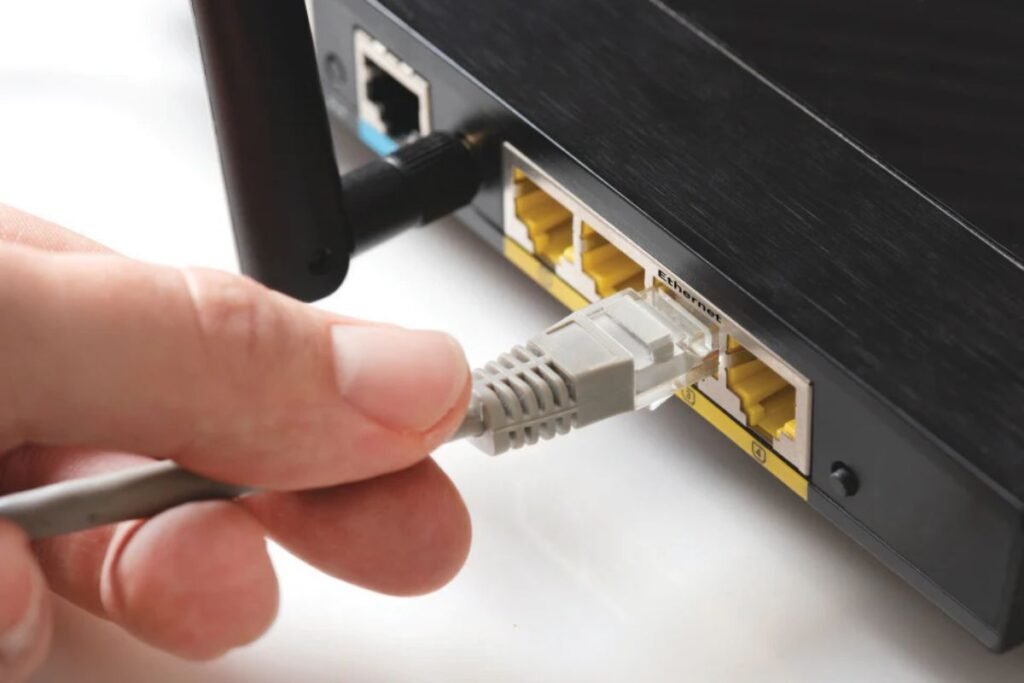
A wired Ethernet connection offers:
- Lower latency
- Better stability
- Less packet loss
- Reduced interference
- Faster response times
Although modern Wi-Fi 6 and Wi-Fi 7 routers perform well, Ethernet remains the best choice for competitive cloud gaming.
Upgrade Your Router
An outdated router can bottleneck your gaming experience.
Look for:
- Wi-Fi 6 or Wi-Fi 6E
- Gigabit Ethernet ports
- Quality of Service (QoS)
- Dual-band or tri-band support
- MU-MIMO technology
Gaming routers also prioritize gaming traffic automatically.
Close Background Applications
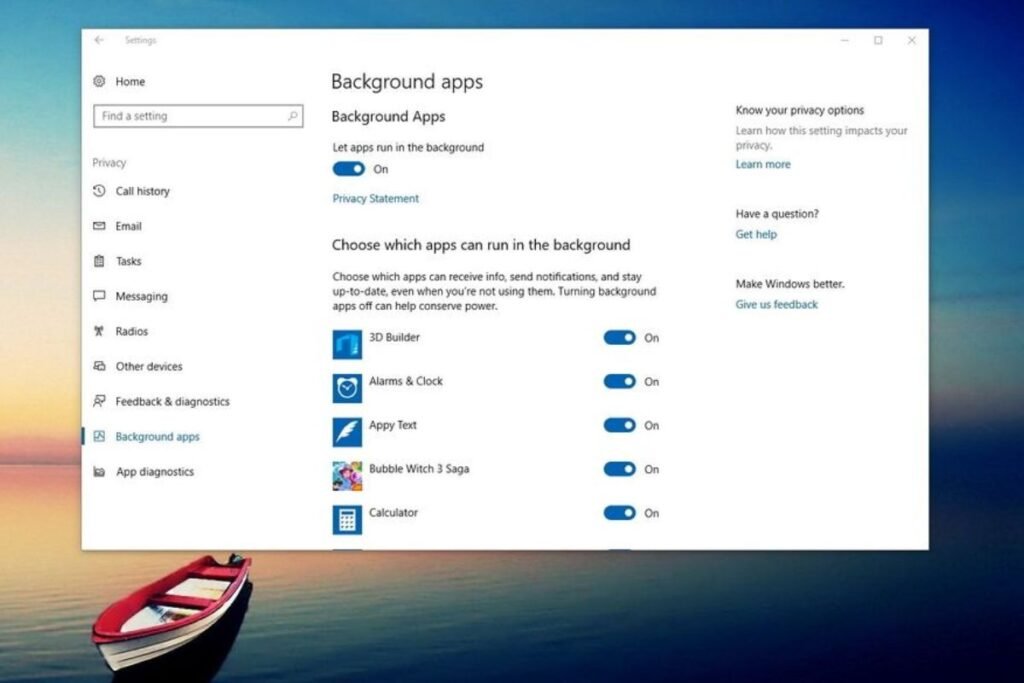
Background programs consume:
- CPU resources
- Memory
- Internet bandwidth
Before launching a cloud gaming session, close applications like:
- Windows Update
- OneDrive syncing
- Dropbox
- Google Drive
- Steam downloads
- Epic Games downloads
- Torrent clients
- Video streaming apps
This helps your PC dedicate resources to game streaming.
Update Windows
Windows updates often improve:
- Network performance
- Driver compatibility
- Security
- Hardware optimization
Running the latest version reduces compatibility problems with modern cloud gaming platforms.
Update Graphics Drivers
Although cloud servers render the game, your GPU still decodes streamed video.
Install the latest drivers from NVIDIA, AMD, or Intel for:
- Better video decoding
- Lower CPU usage
- Improved hardware acceleration
- Reduced stuttering
Updated drivers improve the overall cloud gaming experience.
Enable Hardware Acceleration
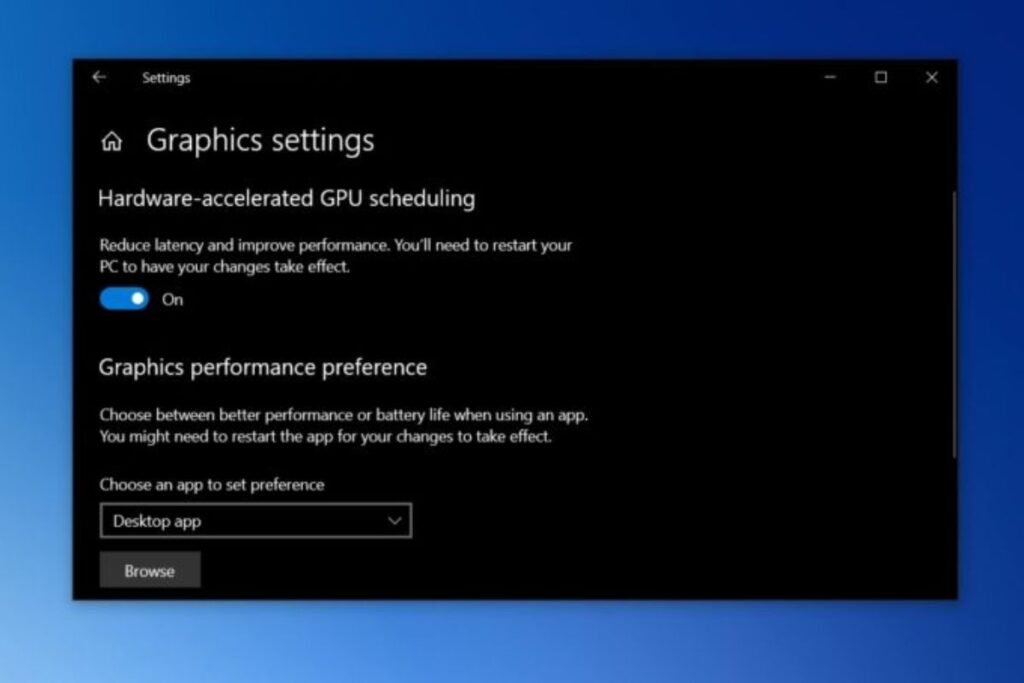
Hardware acceleration allows your GPU to decode video instead of your CPU.
Benefits include:
- Lower CPU usage
- Better streaming quality
- Reduced latency
- Smoother gameplay
Most modern browsers and cloud gaming applications support this feature.
Optimize Your Browser
If you play through a browser:
- Update Chrome or Microsoft Edge regularly.
- Clear browser cache.
- Disable unnecessary extensions.
- Close unused tabs.
- Enable hardware acceleration.
These small improvements help maintain smoother cloud gaming performance.
Select the Correct Display Resolution
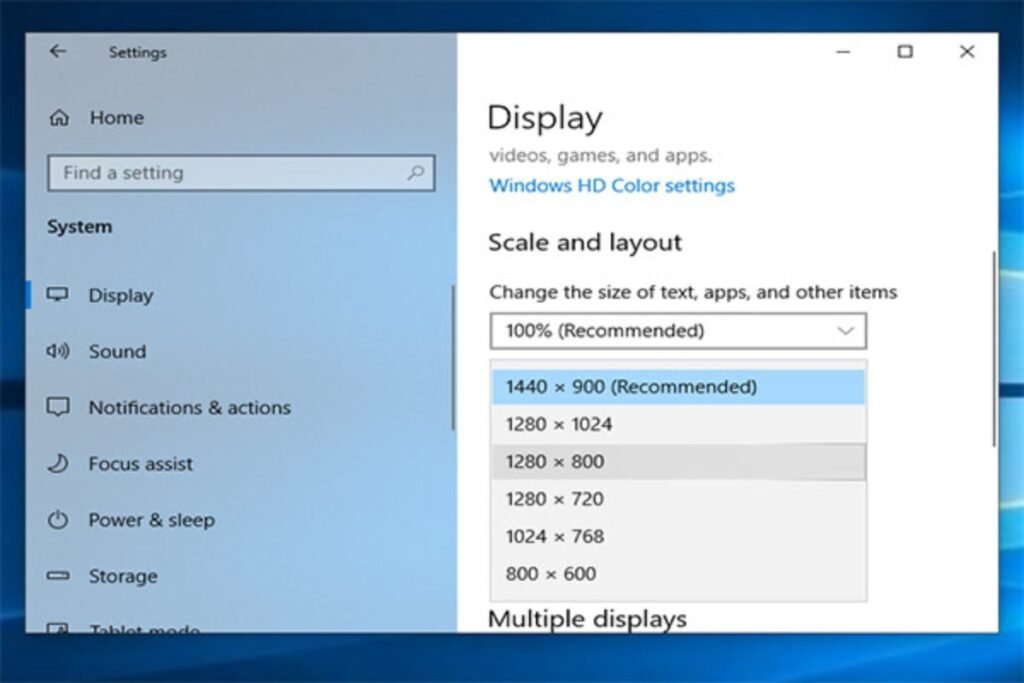
Using the same resolution as your monitor prevents unnecessary scaling.
For example:
- 1080p monitor → Stream at 1080p
- 1440p monitor → Stream at 1440p
- 4K monitor → Stream at 4K (if supported)
Matching resolutions reduces GPU workload and improves visual quality.
Reduce Input Lag
Input lag is one of the biggest concerns in cloud gaming.
You can reduce it by:
- Using Ethernet
- Connecting wired controllers
- Closing background apps
- Enabling Game Mode
- Disabling unnecessary overlays
- Using a low-latency gaming monitor
- Keeping frame synchronization settings optimized
Even small improvements make games feel much more responsive.
Enable Windows Game Mode
Windows Game Mode prioritizes system resources for gaming and can improve your cloud gaming experience by reducing interruptions from background processes.
To enable it:
- Open Settings.
- Go to Gaming.
- Select Game Mode.
- Turn it on.
This helps Windows focus on gaming performance while minimizing unnecessary background activity.
Disable Unnecessary Startup Programs
Many applications launch automatically when Windows starts, consuming RAM and CPU resources.
Disable programs you don’t need, such as:
- Chat applications
- Music streaming apps
- Auto-updating software
- Cloud storage sync tools
- Printer utilities
Reducing startup programs helps your PC remain responsive during cloud gaming sessions.
Keep Plenty of Free Storage
Although cloud gaming doesn’t require installing large game files, Windows still needs free storage for:
- Temporary files
- Browser cache
- Virtual memory
- System updates
Maintain at least 20–25% free disk space for optimal performance.
If possible, install Windows on an SSD instead of an HDD for faster system responsiveness.
Optimize DNS Settings
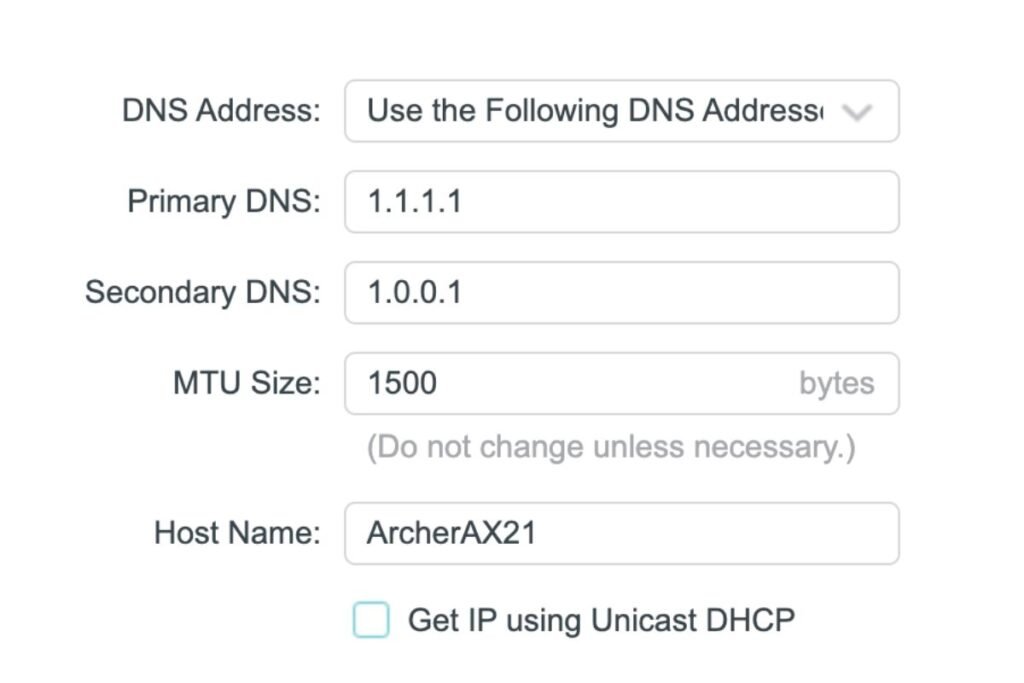
A faster DNS server can slightly reduce the time it takes to connect to cloud gaming services.
Popular public DNS providers include:
- Google DNS (8.8.8.8 / 8.8.4.4)
- Cloudflare DNS (1.1.1.1 / 1.0.0.1)
- Quad9 (9.9.9.9)
While DNS won’t dramatically lower latency during gameplay, it can improve connection speed to gaming platforms.
Configure Quality of Service (QoS)
Many modern routers include Quality of Service (QoS), allowing you to prioritize gaming traffic over downloads and video streaming.
Benefits include:
- Lower latency
- Reduced lag spikes
- More stable connections
- Better performance when multiple devices share the network
If your household has many connected devices, enabling QoS can significantly improve your cloud gaming experience.
Pause Downloads and Updates
Large downloads consume valuable bandwidth.
Before starting a gaming session, pause:
- Windows Updates
- Steam downloads
- Epic Games updates
- Game Pass downloads
- Browser downloads
- Cloud backups
This ensures your internet connection is fully available for cloud gaming.
Choose the Best Cloud Gaming Service
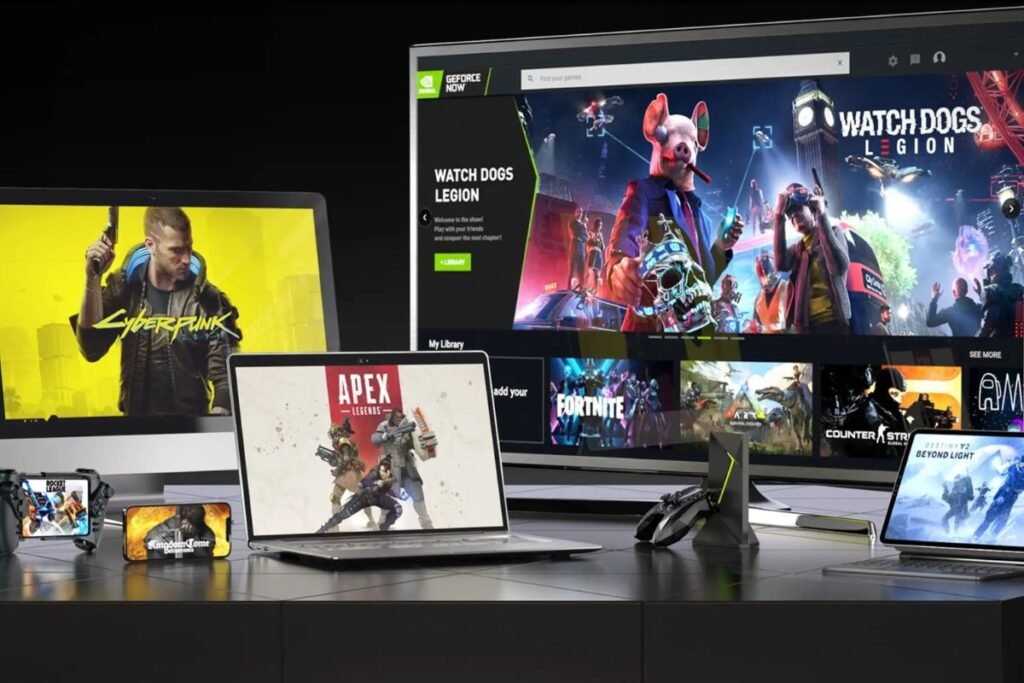
Different services offer different game libraries, performance levels, and supported devices.
Popular options include:
NVIDIA GeForce NOW
Ideal for gamers who already own games on Steam, Epic Games Store, or Ubisoft Connect.
Pros
- Excellent image quality
- RTX support
- High refresh rate options
- Large supported game library
Xbox Cloud Gaming
Best for Xbox Game Pass Ultimate subscribers.
Pros
- Hundreds of games included
- Easy setup
- Cross-platform support
- Excellent value
Boosteroid
A growing platform with support for many popular PC games.
Pros
- Affordable pricing
- Broad compatibility
- Easy browser access
Amazon Luna
Suitable for casual gamers who want quick access to games without downloads.
Pros
- Family-friendly
- Multiple subscription channels
- Compatible with many devices
Adjust Streaming Quality
Most cloud gaming platforms allow you to customize streaming quality.
Choose settings based on your internet speed:
| Internet Speed | Recommended Quality |
| 15 Mbps | 720p |
| 20–30 Mbps | 1080p |
| 35–50 Mbps | 1440p |
| 50+ Mbps | 4K |
Avoid selecting the highest quality if your connection isn’t stable, as it can lead to buffering and input lag.
Use a Gaming Monitor
A gaming monitor with a higher refresh rate and lower response time can make cloud gaming feel more responsive.
Recommended specifications:
- 120Hz or higher refresh rate
- 1ms response time
- Adaptive Sync support
- Low input lag
Even though streamed games may have frame rate limits, a quality monitor improves the overall viewing experience.
Optimize Audio Settings
Audio delays can affect gameplay, especially in competitive games.
For the best results:
- Use wired headphones when possible.
- Keep audio drivers updated.
- Disable unnecessary audio enhancements if they cause latency.
This ensures that sound remains synchronized with gameplay.
Secure Your Network
A secure and well-maintained network helps prevent interruptions.
Best practices include:
- Use WPA3 or WPA2 encryption.
- Change your router’s default password.
- Restart your router periodically.
- Update router firmware regularly.
A healthy network contributes to a more reliable cloud gaming experience.
Common Cloud Gaming Problems and Solutions
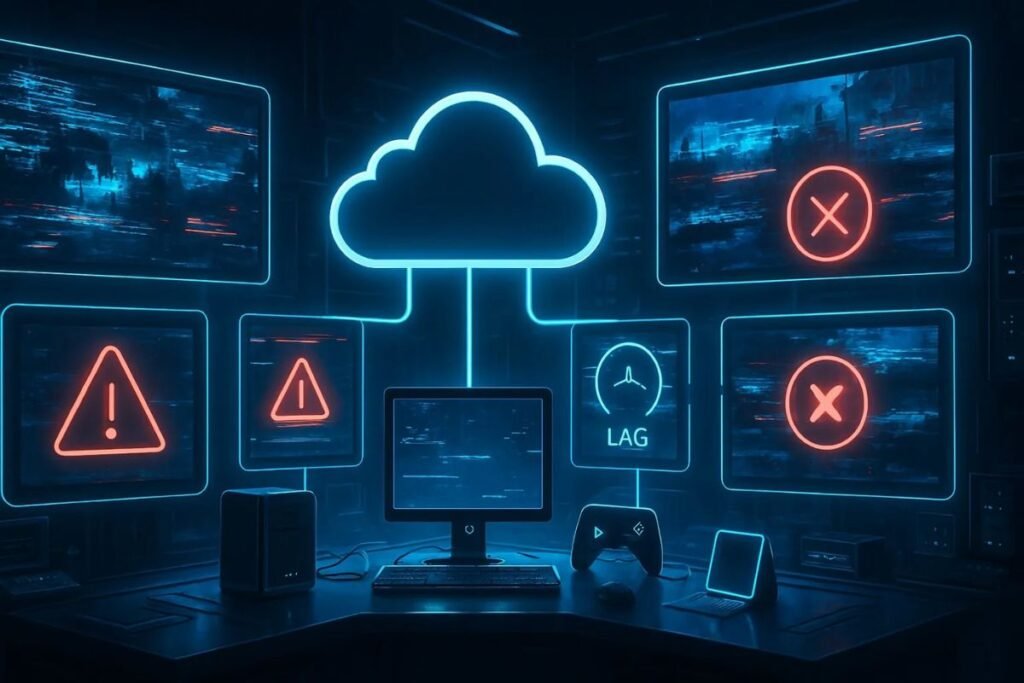
High Input Lag
Possible Causes
- Weak Wi-Fi signal
- High network latency
- Background downloads
Solutions
- Switch to Ethernet.
- Pause downloads.
- Restart your router.
- Connect to a closer server if available.
Poor Video Quality
Possible Causes
- Slow internet
- Network congestion
- Low streaming settings
Solutions
- Increase available bandwidth.
- Close other streaming services.
- Select a higher streaming quality if your connection supports it.
Frequent Disconnections
Possible Causes
- ISP issues
- Router problems
- Wi-Fi interference
Solutions
- Restart networking equipment.
- Update router firmware.
- Use a wired connection whenever possible.
Requirements for Cloud Gaming
Even though remote servers handle game rendering, your PC should still meet these basic specifications:
- Windows 10 or Windows 11
- Dual-core processor or better
- 8GB RAM minimum
- Modern integrated or dedicated GPU with hardware video decoding
- SSD recommended
- Stable broadband connection
- Gigabit Ethernet or Wi-Fi 6 support
Meeting these requirements helps deliver a smooth and enjoyable cloud gaming experience.
Best Practices Checklist
Before starting a cloud gaming session, make sure you:
- ✔ Use a wired Ethernet connection whenever possible.
- ✔ Restart your router regularly.
- ✔ Close unnecessary background applications.
- ✔ Pause downloads and updates.
- ✔ Update Windows and graphics drivers.
- ✔ Enable Windows Game Mode.
- ✔ Use hardware acceleration in your browser or app.
- ✔ Keep at least 20% free storage space.
- ✔ Choose the correct streaming resolution.
- ✔ Select the nearest available game server.
Following this checklist consistently can significantly improve your gaming experience.
Conclusion
Cloud gaming has made high-quality gaming more accessible than ever. You no longer need the latest graphics card to enjoy modern AAA titles, but your local setup still plays a crucial role in delivering a smooth experience.
By optimizing your gaming PC, improving your internet connection, updating drivers, reducing background activity, and using the right streaming settings, you can minimize input lag, reduce buffering, and enjoy crisp visuals with responsive controls.
Whether you’re playing action games, racing simulators, RPGs, or competitive multiplayer titles, these optimization tips will help you get the most out of every cloud gaming session.
As cloud technology continues to evolve, maintaining an optimized PC and a reliable network will ensure you’re ready for the next generation of game streaming.
FAQs
Q: Is a gaming PC necessary for cloud gaming?
Ans: No. One of the biggest advantages of cloud gaming is that the game runs on powerful remote servers instead of your local hardware. However, a well-optimized PC with a stable internet connection provides a smoother and more responsive experience.
Q: What internet speed is best for cloud gaming?
Ans: For the best experience:
- 720p: 10 Mbps or higher
- 1080p: 20–25 Mbps
- 1440p: 35 Mbps
- 4K: 45–50 Mbps or higher
More importantly, keep your latency low (under 30 ms) and packet loss close to zero.
Q: Is Wi-Fi good enough for cloud gaming?
Ans: Yes, modern Wi-Fi 6 or Wi-Fi 6E networks can deliver excellent performance. However, an Ethernet connection is still the best option because it offers lower latency, greater stability, and fewer interruptions.
Q: Does RAM affect cloud gaming?
Ans: Yes, but only indirectly. While the game itself runs in the cloud, your PC still needs enough RAM to run Windows, your browser or gaming app, and background processes. At least 8 GB of RAM is recommended, while 16 GB offers a better overall experience.
Q: Which cloud gaming service is the best?
Ans: The answer depends on your needs:
- NVIDIA GeForce NOW – Best for gamers who already own PC games.
- Xbox Cloud Gaming – Excellent value with Game Pass Ultimate.
- Boosteroid – Supports a large selection of PC games.
- Amazon Luna – Great for casual and family-friendly gaming.
Q: Can a VPN improve cloud gaming?
Ans: Usually not. A VPN often increases latency because your traffic is routed through an additional server. Unless your ISP has routing issues, it’s generally better to play without a VPN.




7 Comments